# openvpn-ui
**Repository Path**: huiweit/openvpn-ui
## Basic Information
- **Project Name**: openvpn-ui
- **Description**: No description available
- **Primary Language**: Unknown
- **License**: MIT
- **Default Branch**: main
- **Homepage**: None
- **GVP Project**: No
## Statistics
- **Stars**: 0
- **Forks**: 0
- **Created**: 2025-12-11
- **Last Updated**: 2025-12-11
## Categories & Tags
**Categories**: Uncategorized
**Tags**: None
## README
# OpenVPN UI
OpenVPN server web administration interface.
Quick to deploy and easy to use, makes work with small OpenVPN environments a breeze.
 [](https://github.com/d3vilh/openvpn-ui/releases/latest) [](https://hub.docker.com/r/d3vilh/openvpn-ui) 
[](https://github.com/d3vilh/openvpn-server) [](https://hub.docker.com/r/d3vilh/openvpn-server)
## Features
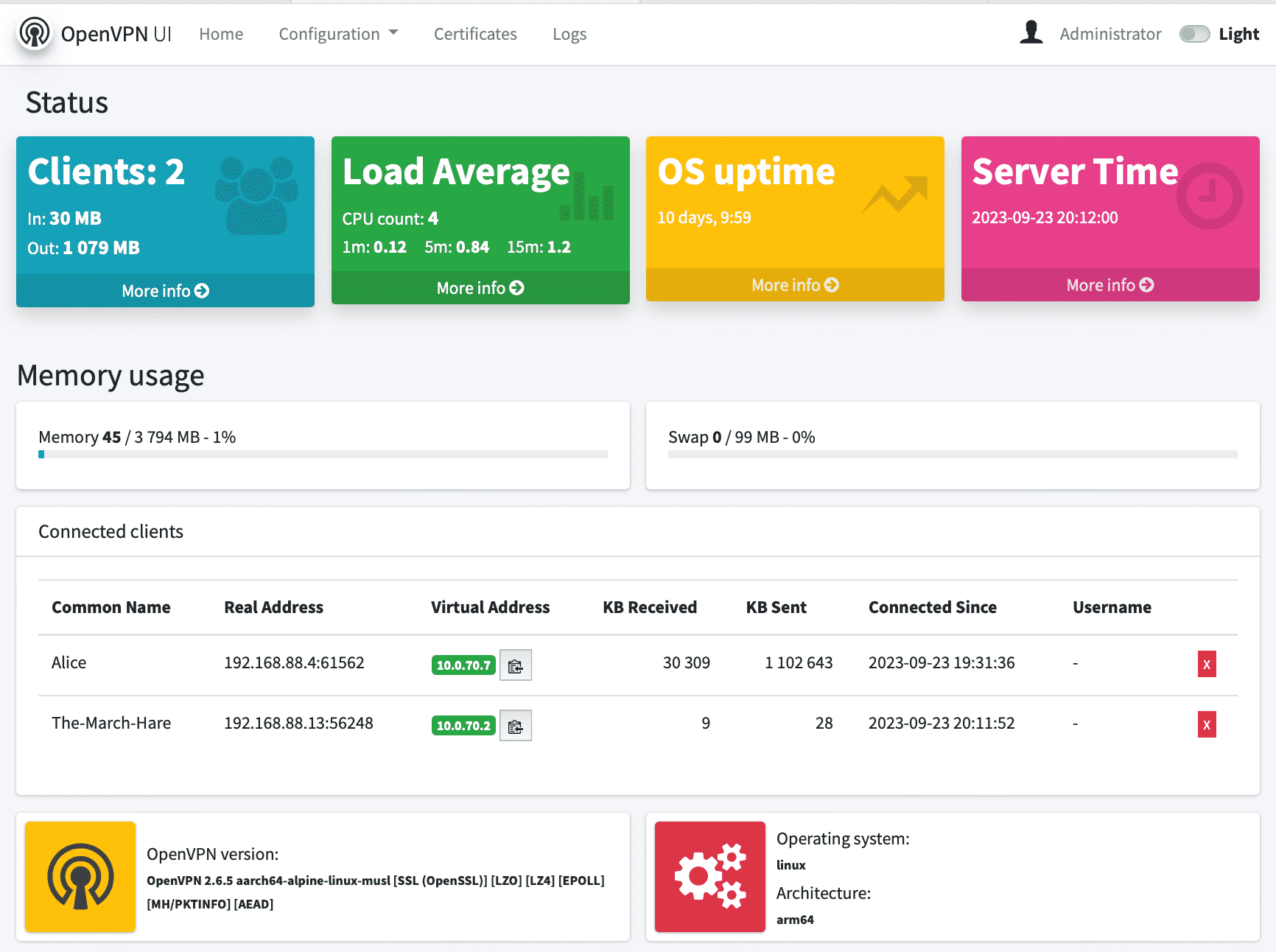
* Status page that shows server statistics and list of connected clients
* Supports OpenVPN **tunnel**(`dev tun`) or **bridge**(`dev tap`) server configurations
* Easy to **generate**, **download**, **renew**, **revoke**, **delete** and **view** client certificates
* Client can have secret **passphrase** and **static IP** assigned during client certificate generation
* Two factor authentication (**[2FA/MFA](https://github.com/d3vilh/openvpn-ui#two-factor-authentication-2fa)**) support
* **Change predefined EasyRSA vars** including certificates and CRL expiration time
* **Maintain EasyRSA PKI infrastructure** (init, build-ca, gen-dh, build-crl, gen-ta, revoke)
* Change OpenVPN Server configuration via web interface
* Easy to preview OpenVPN Server logs
* Restart OpenVPN Server and OpenVPN UI from web interface
* **OpenVPN-UI users management**. Administrators has full access, regular users to Certificates management, logs and status page only.
* OpenVPN-UI Admin user and password can be passed via environment variables to container
* Updated infrustracture:
* Alpine Linux as fastest and secure base image
* GoLang 1.21
* Beego 2.1 with all vulnerabilities fixed
* Easy-rsa 3.X
* Openssl 3.X
* OpenVPN 2.5.8 Server is fully compatible
* Compatible OpenVPN Server images can be found on Docker Hub - [d3vilh/openvpn-server:latest](https://hub.docker.com/r/d3vilh/openvpn-server)
* As well as Openvpn-UI itself - [d3vilh/openvpn-ui:latest](https://hub.docker.com/r/d3vilh/openvpn-ui)
* Support any architecture, ready images for AMD64 and ARM [available on Docker Hub](https://hub.docker.com/r/d3vilh/openvpn-ui).
Part of following projects:
* [Openvpn-aws](https://github.com/d3vilh/openvpn-aws) OpenVPN and OpenVPN-UI for any Cloud, VM or x86 bare metal server.
* [Raspberry-gateway](https://github.com/d3vilh/raspberry-gateway) simple yet powerful home gateway environment with Pi-Hole +Unbound, VPN, Torrent client and Internet monitoring, all managed by Portainer.
## Installation
For the best experience, it is recommended to deploy it within a Docker environment consisting of two distinct containers:
- The [`d3vilh/openvpn-server`](https://github.com/d3vilh/openvpn-server) Back-End container (openvpn) for running OpenVPN server.
- OpenVPN UI Front-End container (openvpn-ui) for efficient management of the OpenVPN server environment.
However it works fine as standalone application with standalone OpenVPN server as well.
### Intel x86 and AMD64 platforms
You can run both containers from the official [openvpn-server](https://github.com/d3vilh/openvpn-server) repository, `docker-compose-openvpnui.yml`.
It includes all the files in its main directory.
For automated installation on baremetal x86-64 servers, Cloud or VM installation, please use [openvpn-aws](https://github.com/d3vilh/openvpn-aws) project.
It, as well, includes all the necessary scripts for easy installation of OpenVPN-UI and OpenVPN server on any x86-64 platform.
### Raspberry-pi and other ARM platforms
For Raspberry-Pi and other ARM devices, consider [Raspberry-Gateway](https://github.com/d3vilh/raspberry-gateway) project.
It has all the necessary scripts for easy installation and lot of additional features.
You can run both containers from the [openvpn-server](https://github.com/d3vilh/openvpn-server) repository as well (use `docker-compose-openvpnui.yml`).
It includes all the files in its main directory, as well.
### Manual installation
[](https://github.com/d3vilh/openvpn-ui/releases/latest) [](https://hub.docker.com/r/d3vilh/openvpn-ui) 
[](https://github.com/d3vilh/openvpn-server) [](https://hub.docker.com/r/d3vilh/openvpn-server)
## Features
* Status page that shows server statistics and list of connected clients
* Supports OpenVPN **tunnel**(`dev tun`) or **bridge**(`dev tap`) server configurations
* Easy to **generate**, **download**, **renew**, **revoke**, **delete** and **view** client certificates
* Client can have secret **passphrase** and **static IP** assigned during client certificate generation
* Two factor authentication (**[2FA/MFA](https://github.com/d3vilh/openvpn-ui#two-factor-authentication-2fa)**) support
* **Change predefined EasyRSA vars** including certificates and CRL expiration time
* **Maintain EasyRSA PKI infrastructure** (init, build-ca, gen-dh, build-crl, gen-ta, revoke)
* Change OpenVPN Server configuration via web interface
* Easy to preview OpenVPN Server logs
* Restart OpenVPN Server and OpenVPN UI from web interface
* **OpenVPN-UI users management**. Administrators has full access, regular users to Certificates management, logs and status page only.
* OpenVPN-UI Admin user and password can be passed via environment variables to container
* Updated infrustracture:
* Alpine Linux as fastest and secure base image
* GoLang 1.21
* Beego 2.1 with all vulnerabilities fixed
* Easy-rsa 3.X
* Openssl 3.X
* OpenVPN 2.5.8 Server is fully compatible
* Compatible OpenVPN Server images can be found on Docker Hub - [d3vilh/openvpn-server:latest](https://hub.docker.com/r/d3vilh/openvpn-server)
* As well as Openvpn-UI itself - [d3vilh/openvpn-ui:latest](https://hub.docker.com/r/d3vilh/openvpn-ui)
* Support any architecture, ready images for AMD64 and ARM [available on Docker Hub](https://hub.docker.com/r/d3vilh/openvpn-ui).
Part of following projects:
* [Openvpn-aws](https://github.com/d3vilh/openvpn-aws) OpenVPN and OpenVPN-UI for any Cloud, VM or x86 bare metal server.
* [Raspberry-gateway](https://github.com/d3vilh/raspberry-gateway) simple yet powerful home gateway environment with Pi-Hole +Unbound, VPN, Torrent client and Internet monitoring, all managed by Portainer.
## Installation
For the best experience, it is recommended to deploy it within a Docker environment consisting of two distinct containers:
- The [`d3vilh/openvpn-server`](https://github.com/d3vilh/openvpn-server) Back-End container (openvpn) for running OpenVPN server.
- OpenVPN UI Front-End container (openvpn-ui) for efficient management of the OpenVPN server environment.
However it works fine as standalone application with standalone OpenVPN server as well.
### Intel x86 and AMD64 platforms
You can run both containers from the official [openvpn-server](https://github.com/d3vilh/openvpn-server) repository, `docker-compose-openvpnui.yml`.
It includes all the files in its main directory.
For automated installation on baremetal x86-64 servers, Cloud or VM installation, please use [openvpn-aws](https://github.com/d3vilh/openvpn-aws) project.
It, as well, includes all the necessary scripts for easy installation of OpenVPN-UI and OpenVPN server on any x86-64 platform.
### Raspberry-pi and other ARM platforms
For Raspberry-Pi and other ARM devices, consider [Raspberry-Gateway](https://github.com/d3vilh/raspberry-gateway) project.
It has all the necessary scripts for easy installation and lot of additional features.
You can run both containers from the [openvpn-server](https://github.com/d3vilh/openvpn-server) repository as well (use `docker-compose-openvpnui.yml`).
It includes all the files in its main directory, as well.
### Manual installation
With Docker-compose
#### Running this image with `docker-compose.yml` file
```yaml
openvpn-ui:
container_name: openvpn-ui
image: d3vilh/openvpn-ui:latest
environment:
- OPENVPN_ADMIN_USERNAME={{ ovpnui_user }}
- OPENVPN_ADMIN_PASSWORD={{ ovpnui_password }}
privileged: true
ports:
- "8080:8080/tcp"
volumes:
- ./:/etc/openvpn
- ./db:/opt/openvpn-ui/db
- ./pki:/usr/share/easy-rsa/pki
- /var/run/docker.sock:/var/run/docker.sock:ro
restart: always
```
---
You can also couple OpenVPN-UI with recommended [d3vilh/openvpn-server](https://github.com/d3vilh/openvpn-server) image and here is updated `docker-compose.yml` for it:
```yaml
---
version: "3.5"
services:
openvpn:
container_name: openvpn
image: d3vilh/openvpn-server:latest
privileged: true
ports:
- "1194:1194/udp"
environment:
TRUST_SUB: 10.0.70.0/24
GUEST_SUB: 10.0.71.0/24
HOME_SUB: 192.168.88.0/24
volumes:
- ./pki:/etc/openvpn/pki
- ./clients:/etc/openvpn/clients
- ./config:/etc/openvpn/config
- ./staticclients:/etc/openvpn/staticclients
- ./log:/var/log/openvpn
- ./fw-rules.sh:/opt/app/fw-rules.sh
- ./server.conf:/etc/openvpn/server.conf
cap_add:
- NET_ADMIN
restart: always
openvpn-ui:
container_name: openvpn-ui
image: d3vilh/openvpn-ui:latest
environment:
- OPENVPN_ADMIN_USERNAME=admin
- OPENVPN_ADMIN_PASSWORD=gagaZush
privileged: true
ports:
- "8080:8080/tcp"
volumes:
- ./:/etc/openvpn
- ./db:/opt/openvpn-ui/db
- ./pki:/usr/share/easy-rsa/pki
- /var/run/docker.sock:/var/run/docker.sock:ro
restart: always
```
If you start this compose file with volumes listed above (click to see detail)
You have to run these commands before starting:
```shell
mkdir -p /var/data/d3openvpn # change it as you needed
cd /var/data/d3openvpn
git clone https://github.com/d3vilh/openvpn-server . # or download the zip file from GitHub if you don't have git installed
sudo docker compose -f docker-compose.yml up -d
```
or
```shell
mkdir -p /var/data/d3openvpn # change it as you needed
cd /var/data/d3openvpn
mkdir -p ./config
wget https://raw.githubusercontent.com/d3vilh/openvpn-server/refs/heads/main/server.conf -O server.conf
wget https://raw.githubusercontent.com/d3vilh/openvpn-server/refs/heads/main/config/easy-rsa.vars -O config/easy-rsa.vars
wget https://raw.githubusercontent.com/d3vilh/openvpn-server/refs/heads/main/config/client.conf -O config/client.conf
echo "" > ./fw-rules.sh
sudo docker compose -f docker-compose.yml up -d
```
**Where:**
* `TRUST_SUB` is Trusted subnet, from which OpenVPN server will assign IPs to trusted clients (default subnet for all clients)
* `GUEST_SUB` is Gusets subnet for clients with internet access only
* `HOME_SUB` is subnet where the VPN server is located, thru which you get internet access to the clients with MASQUERADE
* `fw-rules.sh` is bash file with additional firewall rules you would like to apply during container start
`docker_entrypoint.sh` will apply following Firewall rules:
```shell
IPT MASQ Chains:
MASQUERADE all -- ip-10-0-70-0.ec2.internal/24 anywhere
MASQUERADE all -- ip-10-0-71-0.ec2.internal/24 anywhere
IPT FWD Chains:
0 0 DROP 1 -- * * 10.0.71.0/24 0.0.0.0/0 icmptype 8
0 0 DROP 1 -- * * 10.0.71.0/24 0.0.0.0/0 icmptype 0
0 0 DROP 0 -- * * 10.0.71.0/24 192.168.88.0/24
```
Here is possible content of `fw-rules.sh` file to apply additional rules:
```shell
~/openvpn-server $ cat fw-rules.sh
iptables -A FORWARD -s 10.0.70.88 -d 10.0.70.77 -j DROP
iptables -A FORWARD -d 10.0.70.77 -s 10.0.70.88 -j DROP
```
With Dockerfile
#### Run this image using the Dockerfile
Run the OpenVPN-UI image
```shell
docker run \
-v /home/pi/openvpn:/etc/openvpn \
-v /home/pi/openvpn/db:/opt/openvpn-ui/db \
-v /home/pi/openvpn/pki:/usr/share/easy-rsa/pki \
-v /home/pi/openvpn/log:/var/log/openvpn \
-v /var/run/docker.sock:/var/run/docker.sock \
-e OPENVPN_ADMIN_USERNAME='admin' \
-e OPENVPN_ADMIN_PASSWORD='gagaZush' \
-p 8080:8080/tcp \
--privileged d3vilh/openvpn-ui:latest
```
Run the OpenVPN Server image:
```shell
git clone https://github.com/d3vilh/openvpn-server ~/openvpn-server && \
cd ~/openvpn-server/ && \
docker run --interactive --tty --rm \
--name=openvpn-server \
--cap-add=NET_ADMIN \
-p 1194:1194/udp \
-e TRUST_SUB=10.0.70.0/24 \
-e GUEST_SUB=10.0.71.0/24 \
-e HOME_SUB=192.168.88.0/24 \
-v ./pki:/etc/openvpn/pki \
-v ./clients:/etc/openvpn/clients \
-v ./config:/etc/openvpn/config \
-v ./staticclients:/etc/openvpn/staticclients \
-v ./log:/var/log/openvpn \
-v ./fw-rules.sh:/opt/app/fw-rules.sh \
-v ./server.conf:/etc/openvpn/server.conf \
--privileged d3vilh/openvpn-server:latest
```
Building own image
#### Building own image
##### Prerequisites
As prerequisite, you need to have Docker and GoLang to be installed and running:
```
sudo apt-get install docker.io -y
sudo systemctl restart docker
```
To install Golang go to [https://go.dev/dl](https://go.dev/dl/) and copy download URL for Go1.20.X version of your arch and follow the instructions below.
Example for ARM64:
```shell
wget https://golang.org/dl/go1.20.linux-arm64.tar.gz
sudo tar -C /usr/local -xzf go1.20.linux-arm64.tar.gz
echo "export PATH=$PATH:/usr/local/go/bin" >> /etc/profile
source /etc/profile
go version
```
##### Building the image
To build the OpenVPN-UI image:
```shell
cd build; ./build_openvpn-ui.sh
```
The new image will have `openvpn-ui` name.
Standalone installation
#### Standalone installation without docker and docker-compose
If you have your OpenVPN server up and running on the same host, you can install OpenVPN-UI as standalone application.
For this you need to have GoLang installed on your host to build all the necessary binaries on the server itself.
To make installation easier, version 0.9.5 now includes a [`standalone-install.sh`](https://github.com/d3vilh/openvpn-ui/blob/e2f452d2872a022147f8c58213fa4306f61e65e8/build/standalone-install.sh) script. This script helps you step by step, starting with downloading and installing GoLang, and ending with building the binaries.
At the moment script supports Debian based systems only.
Here is installation process example:
```bash
superdude@bookworm64:~/build/openvpn-ui/build$ ./standalone-install.sh
This script will install OpenVPN-UI and all the dependencies on your local environment. No containers will be used.
Do you want to continue? (y/n)y
Golang version 1.21 is not installed.
Would you like to install it? (y/n) y
--2024-02-20 16:37:47-- https://golang.org/dl/go1.21.5.linux-amd64.tar.gz
go1.21.5.linux-amd64.tar.gz 100%[========================================================>] 63.53M 3.01MB/s in 20s
2024-02-20 16:38:08 (3.23 MB/s) - 'go1.21.5.linux-amd64.tar.gz' saved [66618285/66618285]
Would you like to run apt-get update? (y/n) y
Updating current environment with apt-get update
[sudo] password for superdude:
No VM guests are running outdated hypervisor (qemu) binaries on this host.
Would you like to download all necessary Go modules? (y/n) y
Downloading all Go modules (go mod download)
Would you like to install Beego v2? (y/n) y
Installing BeeGo v2
go: downloading github.com/beego/bee/v2 v2.0.2-0.20230830024958-01d397161933
go: downloading github.com/matttproud/golang_protobuf_extensions v1.0.4
Would you like to build OpenVPN-UI and install qrencode? (y/n) y
Installing OpenVPN-UI and qrencode
Cloning qrencode into build directory
Cloning into 'qrencode'...
remote: Enumerating objects: 35, done.
Resolving deltas: 100% (8/8), done.
Building and packing OpenVPN-UI
2024/02/20 17:15:07 INFO ▶ 0001 Getting bee latest version...
2024/02/20 17:15:08 INFO ▶ 0002 Your bee are up to date
______
| ___ \
| |_/ / ___ ___
| ___ \ / _ \ / _ \
| |_/ /| __/| __/
\____/ \___| \___| v2.1.0
2024/02/20 17:20:55 SUCCESS ▶ 0004 Build Successful!
2024/02/20 17:21:02 SUCCESS ▶ 0009 Application packed!
Building qrencode
Moving qrencode to GOPATH
All done.
superdude@bookworm64:~/build/openvpn-ui/build$
```
After build and installation is complete:
1. Put archive `openvpn-ui.tar.gz` with binaries to the desired directory where you would like to run OpenVPN-UI from.
2. Uncompress it with `tar -xzf openvpn-ui.tar.gz`.
3. Double check openvpn-ui binary has +x permissions for your user.
4. Create `db` directory in the same directory where `openvpn-ui` binary is located.
5. Update `OpenVpnPath` and `EasyRsaPath` with real location of your OpenVPN server config (`/etc/openvpn`) and EasyRSA (`/usr/share/easy-rsa`) in main application config file - `./conf/app.conf` file.
6. Set `EnableAdmin = false` and `RunMode = prod` in the same file, if you don't need to run BeeGo in development mode and don't need BeeGo admin console to run (in most cases you don't need it).
7. On the first run set `OPENVPN_ADMIN_USERNAME` and `OPENVPN_ADMIN_PASSWORD` environment variables to create admin user with secret password:
```bash
export OPENVPN_ADMIN_USERNAME=admin
export OPENVPN_ADMIN_PASSWORD=$3kR3tPa$Sw0rd
```
8. doublecheck enviroment variables are set properly:
```bash
echo $OPENVPN_ADMIN_USERNAME
echo $OPENVPN_ADMIN_PASSWORD
```
This should return your username and password you will use for the first login into UI. It is mandatory to set this vars on the first application start only. So OpenVPN-UI will create your Admin user with your own credentials.
9. Run `./openvpn-ui` binary and login with your new credentials.
10. Go to `Configuration > OpenVPN Server` and update all the fields with your current `server.conf` options.
11. For security reasons **you have to unset** vars after successful login, so it will be removed from the local server environment:
```bash
unset OPENVPN_ADMIN_USERNAME
unset OPENVPN_ADMIN_PASSWORD
```
### Upgrade to new Version
During the installtion or upgrade process OpenVPN-UI by itself does not do any changes to your OpenVPN server configuration or PKI infrastructure. However it is recommended to perform backup of your `PKI infrastructure`, `server.conf`, `client.conf` and `data.db` before following with upgrade steps.
Backup
#### Backup
To backup your PKI infrastructure, server, client configuration files and OpenVPN-UI DB you can use `backup.sh` script which is in [`build/assets` directory](build/assets/backup.sh) (since the release `0.6`), it is also part of [openvpn-aws](https://github.com/d3vilh/openvpn-aws) and [Raspberry-Gateway](https://github.com/d3vilh/raspberry-gateway) projects (right in openvpn-server directory).
Copy the script in your home directory(any directory in fact):
```shell
cp -p build/assets/backup.sh ~/
```
Then run the script:
```shell
sudo ./backup.sh -b ~/openvpn-server backup/openvpn-server-030923-1
```
this will create backup of all necessary files, from `~/openvpn-server` to `~/backup/openvpn-server-030923-1`.
You can confirm all files are backed up and go to the "Upgrade" step.
Upgrade
#### Upgrade
To upgrade OpenVPN-UI to the latest version, you have to save old container image, remove old container and deploy new container with upgraded image.
##### Preparation
1. Check which OpenVPN-UI version image is currently used:
```shell
docker inspect --format='{{json .Config.Labels}}' d3vilh/openvpn-ui:latest
{"maintainer":"Mr.Philipp ","version":"0.5"}
```
> **Note**: Old container versions (below ver 0.5) does not have "version" tag.
2. Tag current container image with backup tag:
```shell
docker tag d3vilh/openvpn-ui:latest local/openvpn-ui:backup
```
3. Make sure your docker-compose.yml file is up to date with **desired new version** of image. Our assumption that desired is the `latest` version:
```shell
admin@aws3:~/openvpn $ cat docker-compose.yml | grep image
image: d3vilh/openvpn-ui:latest
admin@aws3:~/openvpn $
```
During the next container start, docker will use image tag from this file to deploy new container.
##### Upgrade Steps
1. Pull new image to your host. Old image will be replaced:
```shell
docker pull d3vilh/openvpn-ui:latest
```
2. Confirm new image is pulled with desired version:
```shell
docker inspect --format='{{json .Config.Labels}}' d3vilh/openvpn-ui:latest
{"maintainer":"Mr.Philipp ","version":"0.9.4"}
```
3. Stop and remove old container:
```shell
docker rm openvpn-ui --force
```
4. Deploy new container with updated image:
```shell
cd ~/openvpn-server
docker-compose up -d
```
5. Verify both containers are up and running:
```shell
admin@aws3:~/openvpn $ docker logs openvpn-ui
...
2023/09/03 12:38:50.650 [I] [server.go:280] http server Running on http://:8080
admin@aws3:~/openvpn $
admin@aws3:~/openvpn $ docker logs openvpn
...
Start openvpn process...
admin@aws3:~/openvpn $
```
##### Verification process
Now when new OpenVPN-UI version is deployed, the DB schema were updated to the latest version automatically during the container start.
* All tables were updated with new fields, existed fields in those tables were not touched to be sure you won't loose any data.
* New tables were created with default values.
Now you need to go to `Configuration > OpenVPN Server` in OpenVPN UI webpage and review and update all options fields very carefully.
Here is example of Server configuration page with new fields after the upgrade from version 0.3 to 0.9:
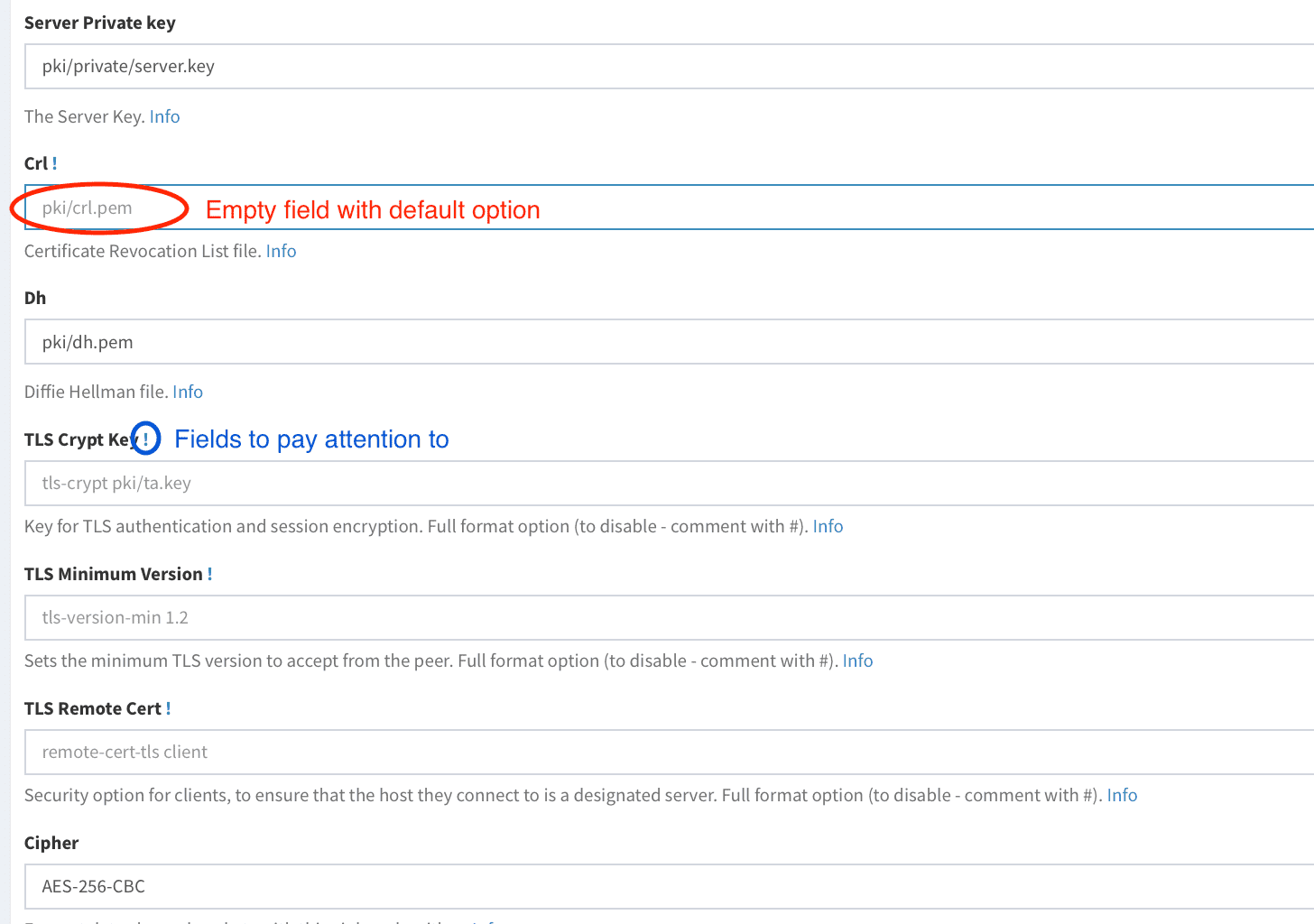 You have to update empty fields with options from your current `server.conf` and **only then** press **`Save Config`** button.
All fields to review are **marked** with ! sign:
You have to update empty fields with options from your current `server.conf` and **only then** press **`Save Config`** button.
All fields to review are **marked** with ! sign:
 Here is how it should looks like:
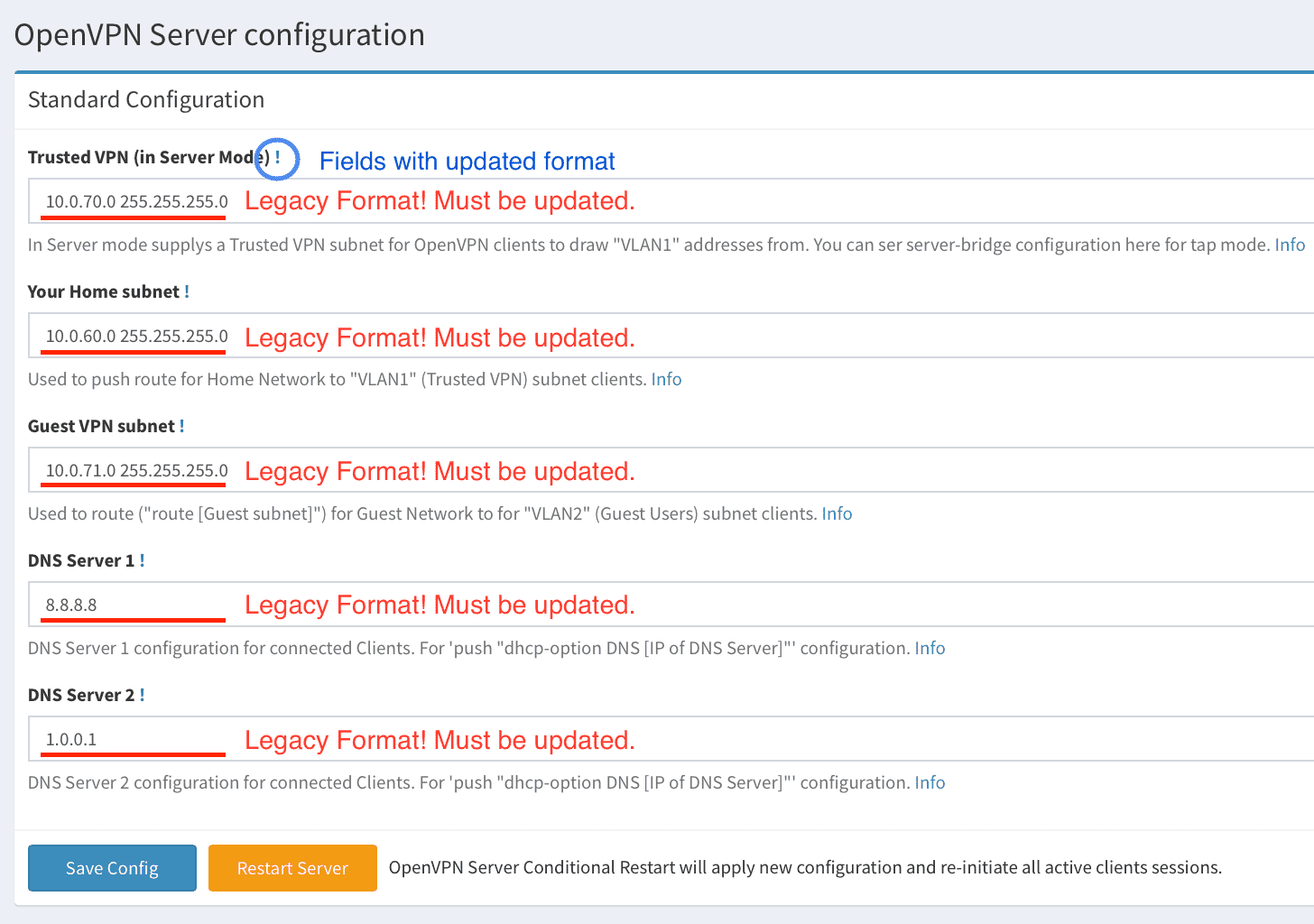
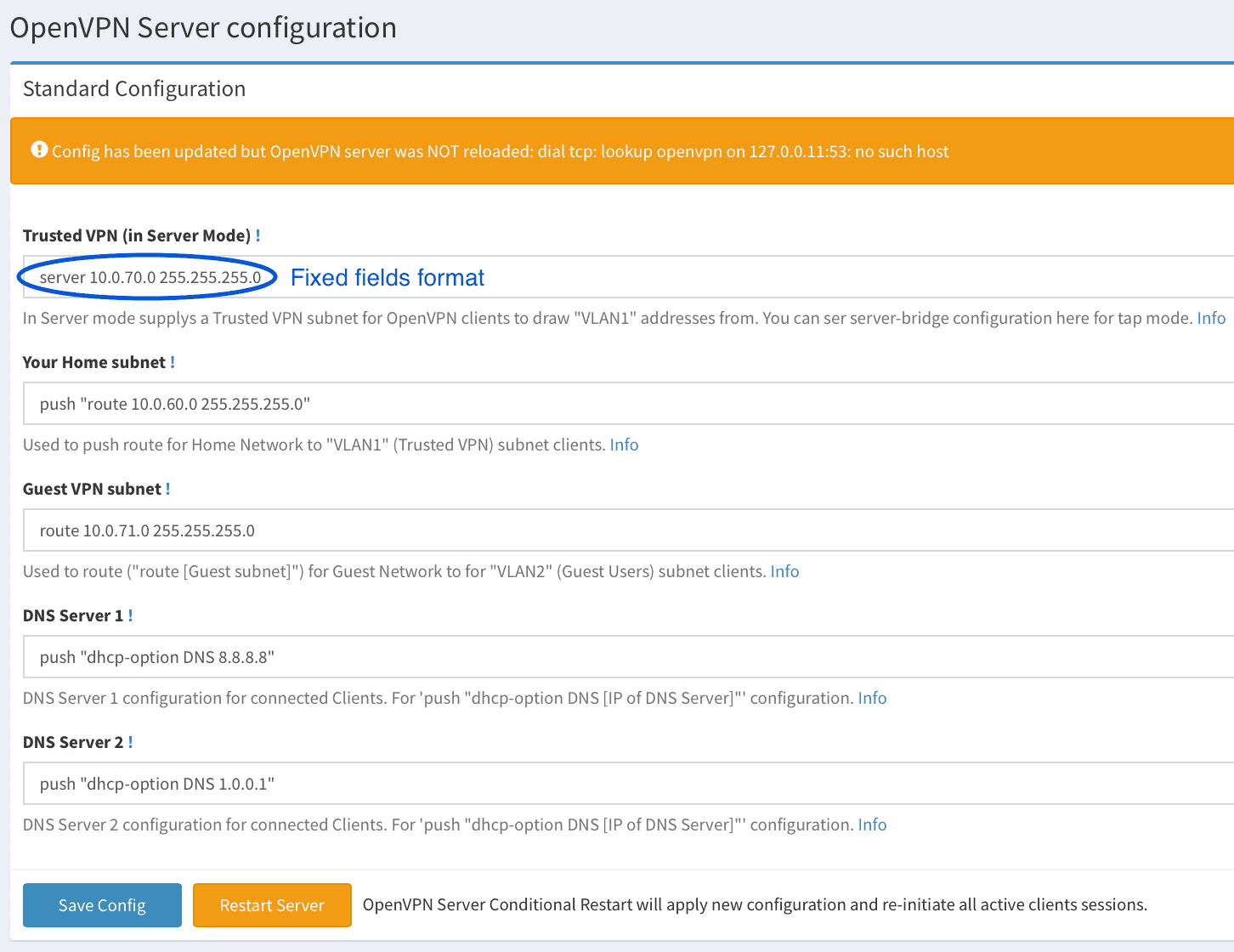 > **Important Note!**: In version 0.6 format of some fields has been changed! Please pay attention that before saving config you have to update all the fields with new format, otherwise OpenVPN Server will not start.
New `server.conf` file will be applied immedeately, after you press **`Save Config`** button.
Next, you have to update `OpenVPN UI`, `OpenVPN Client` and `EasyRSA vars` pages the same way.
And you are done with the upgrade process.
> **Important Note!**: In version 0.6 format of some fields has been changed! Please pay attention that before saving config you have to update all the fields with new format, otherwise OpenVPN Server will not start.
New `server.conf` file will be applied immedeately, after you press **`Save Config`** button.
Next, you have to update `OpenVPN UI`, `OpenVPN Client` and `EasyRSA vars` pages the same way.
And you are done with the upgrade process.
DB Schema changes
##### DB Schema changes 0.3 to 0.9 versions
You have nothing to do with the DB schema, just for your information.
| Version | Table | New Field | New OpenVPN UI gui location |
|---------|-------------------|-------------------------------|---------------------------------|
| **0.3** | o_v_config | o_v_config_log_version | Configuration > OpenVPN Server |
| 0.3 | o_v_config | o_v_config_status_log | Configuration > OpenVPN Server |
| 0.3 | settings | server_address | moved to Configuration > OpenVPN Client |
| 0.3 | settings | open_vpn_server_port | moved to Configuration > OpenVPN Client |
| **0.4** | o_v_client_config | new table | Configuration > OpenVPN Client |
| 0.4 | easy_r_s_a_config | new table | Configuration > EasyRSA vars |
| 0.4 | settings | easy_r_s_a_path | Configuration > OpenVPN-UI |
| **0.5** | **no schema changes** | **no schema changes** | **no schema changes** |
| **0.6** | o_v_config | o_v_config_topology | Configuration > OpenVPN Server |
| 0.6 | o_v_config | o_v_config_user | Configuration > OpenVPN Server |
| 0.6 | o_v_config | o_v_config_group | Configuration > OpenVPN Server |
| 0.6 | o_v_config | o_v_config_client_config_dir | Configuration > OpenVPN Server |
| 0.6 | o_v_config | crl | Configuration > OpenVPN Server |
| 0.6 | o_v_config | t_l_s_control_channel | Configuration > OpenVPN Server |
| 0.6 | o_v_config | t_l_s_min_version | Configuration > OpenVPN Server |
| 0.6 | o_v_config | t_l_s_remote_cert | Configuration > OpenVPN Server |
| 0.6 | o_v_config | o_v_config_ncp_ciphers | Configuration > OpenVPN Server |
| 0.6 | o_v_config | o_v_config_logfile | Configuration > OpenVPN Server |
| 0.6 | o_v_config | o_v_config_log_verbose | Configuration > OpenVPN Server |
| 0.6 | o_v_config | o_v_config_status_log | Configuration > OpenVPN Server |
| 0.6 | o_v_config | o_v_config_status_log_version | Configuration > OpenVPN Server |
| 0.6 | o_v_config | custom_opt_one | Configuration > OpenVPN Server |
| 0.6 | o_v_config | custom_opt_two | Configuration > OpenVPN Server |
| 0.6 | o_v_config | custom_opt_three | Configuration > OpenVPN Server |
| **0.7** | **no schema changes** | **no schema changes** | **no schema changes** |
| **0.8** | **no schema changes** | **no schema changes** | **no schema changes** |
| **0.9** | **no schema changes** | **no schema changes** | Donate here https://u24.gov.ua |
| **0.9.2** | user | is_admin | Your username > Profile |
| **0.9.3** | o_v_config | func_mode | Configuration > OpenVPN Server |
| **0.9.3** | o_v_config | script_security | Configuration > OpenVPN Server |
| **0.9.3** | o_v_config | user_pass_verify | Configuration > OpenVPN Server |
| **0.9.3** | o_v_client_config | func_mode | Configuration > OpenVPN Client |
| **0.9.3** | o_v_client_config | t_f_a_issuer | Configuration > OpenVPN Client |
| **0.9.3** | o_v_client_config | custom_conf_one | Configuration > OpenVPN Client |
| **0.9.3** | o_v_client_config | custom_conf_two | Configuration > OpenVPN Client |
| **0.9.3** | o_v_client_config | custom_conf_three | Configuration > OpenVPN Client |
| **0.9.4** | **no schema changes** | **no schema changes** | **no schema changes** |
| **0.9.5** | **no schema changes** | **no schema changes** | **no schema changes** |
Fallback
#### Fallback
If for some reason you would like to fallback to the previous version, you need to stop container, restore image, then restore all the files from backup you did before and finally run container with previous image.
##### Container and image fallback
1. Stop and remove updated openvpn-ui container:
```shell
docker rm openvpn-ui --force
```
2. Remove updated openvpn-ui image:
```shell
docker image rm d3vilh/openvpn-ui:latest
```
3. Restore old openvpn-ui image:
```shell
docker tag local/openvpn-ui:backup d3vilh/openvpn-ui:latest
```
4. Confirm you have old image version:
```shell
docker inspect --format='{{json .Config.Labels}}' d3vilh/openvpn-ui:latest
{"maintainer":"Mr.Philipp ","version":"0.5"}
```
##### Restore OpenVPN Server enviroment
1. Run restore script:
```shell
sudo ./backup.sh -r ~/openvpn-server backup/openvpn-server-030923-1
```
This will restore all the enviroment files from backup directory to `~/openvpn-server` directory.
> **Note v.0.3**: There was bug in version 0.3 where data.db file were not shared over the volume, so you have to restore it manually: `docker cp backup/data.0.3.db openvpn-ui:/opt/openvpn-ui/data.db`
##### Restore container
1. Run docker-compose up to deploy new container with old image:
```shell
cd ~/openvpn-server
docker-compose up -d
```
2. Verify both containers are up and running:
```shell
admin@aws3:~/openvpn $ docker logs openvpn-ui
...
2023/09/03 12:38:50.650 [I] [server.go:280] http server Running on http://:8080
admin@aws3:~/openvpn $
admin@aws3:~/openvpn $ docker logs openvpn
...
Start openvpn process...
admin@aws3:~/openvpn $
```
Thats it you are back to the previous version.
## Configuration
**OpenVPN UI** can be accessed on own port (*e.g. http://localhost:8080), the default user and password is `admin/gagaZush` preconfigured in `config.yml` if you are using Raspberry-Gateway or Openvpn-aws projects. For standalone installation, you can pass your own credentials via environment variables to container (refer to [Manual installation](https://github.com/d3vilh/openvpn-ui#manual-installation)).
### Container volume
The container volume can be initialized by using the [d3vilh/openvpn-server](https://github.com/d3vilh/openvpn-server) image with included scripts to automatically generate everything you need on the first run:
- Diffie-Hellman parameters
- an EasyRSA CA key and certificate
- a new private key
- a self-certificate matching the private key for the OpenVPN server
- a TLS auth key from HMAC security
However you can generate all the above components on OpenVPN UI `Configuration > Maintenance` page.
### EasyRSA vars
You can update all EasyRSA parameters with OpenVPN UI on `Configuration > EasyRSA vars` page. You also can set custom EasyRSA vars for every new Client Certificate during its creation.
If you are running OpenVPN-UI as manuall installation, please be sure `easy-rsa.vars` is set properly and placed in `.config` container volume as `easy-rsa.vars`.
In this case your custom EasyRSA options will be applied on the first OpenVPN Server start post PKI init step.
Default EasyRSA configuration can be set in `~/openvpn-server/config/easy-rsa.vars` file:
```shell
set_var EASYRSA_DN "org"
set_var EASYRSA_REQ_COUNTRY "UA"
set_var EASYRSA_REQ_PROVINCE "KY"
set_var EASYRSA_REQ_CITY "Kyiv"
set_var EASYRSA_REQ_ORG "SweetHome"
set_var EASYRSA_REQ_EMAIL "sweet@home.net"
set_var EASYRSA_REQ_OU "MyOrganizationalUnit"
set_var EASYRSA_REQ_CN "server"
set_var EASYRSA_KEY_SIZE 2048
set_var EASYRSA_CA_EXPIRE 3650
set_var EASYRSA_CERT_EXPIRE 825
set_var EASYRSA_CERT_RENEW 30
set_var EASYRSA_CRL_DAYS 180
```
In the process of installation these vars will be copied to container volume `/etc/openvpn/pki/vars` and used during all EasyRSA operations.
### Network configuration
This setup use `tun` mode by default, because it works on the widest range of devices. `tap` mode, for instance, does not work on Android, except if the device is rooted.
The default topology is `subnet`, because it works on the widest range of OS. `p2p`, for instance, does not work on Windows.
The server config by default [specifies](https://github.com/d3vilh/openvpn-server/tree/main/config/server.conf#L35) `push redirect-gateway def1 bypass-dhcp`, meaning that after establishing the VPN connection, all traffic will go through the VPN. This might cause problems if you use local DNS recursors which are not directly reachable, since you will try to reach them through the VPN and they might not answer to you. If that happens, use public DNS resolvers like those of OpenDNS (`208.67.222.222` and `208.67.220.220`) or Google (`8.8.4.4` and `8.8.8.8`).
If you wish to use your local DNS server (Pi-Hile?), you have to modify a [dns-configuration](https://github.com/d3vilh/openvpn-server/tree/main/config/server.conf#L21) with your local DNS IP address.
This also can be done easy via `"Configuration" > "OpenVPN Server" > "Push DHCP"` options on OpenVPN UI webpage.
### OpenVPN client subnets. Guest and Home users
By default [d3vilh/openvpn-server](https://github.com/d3vilh/openvpn-server) OpenVPN server uses option `server 10.0.70.0/24` as **"Trusted"** subnet to grab dynamic IPs for all your Clients which, by default will have full access to your **"Private/Home"** subnet, as well as Internet over VPN.
However you can be desired to share internet over VPN with specific, Guest Clients and restrict access to your **"Private/Home"** subnet. For this scenario [d3vilh/openvpn-server](https://github.com/d3vilh/openvpn-server) `server.conf` configuration file has special `route 10.0.71.0/24` option, aka **"Guest users"** subnet.

To assign desired subnet policy to the specific client, you have to define static IP address for the client during its profile/Certificate creation.
To do that, just enter `"Static IP (optional)"` field in `"Certificates"` page and press `"Create"` button.
> Keep in mind, by default, all the clients have full access, so you don't need to specifically configure static IP for your own devices, your home devices always will land to **"Trusted"** subnet by default.
### Firewall rules
By default `docker_entrypoint.sh` of [d3vilh/openvpn-server](https://github.com/d3vilh/openvpn-server) OpenVPN Server container will apply following Firewall rules:
```shell
IPT MASQ Chains:
MASQUERADE all -- ip-10-0-70-0.ec2.internal/24 anywhere
MASQUERADE all -- ip-10-0-71-0.ec2.internal/24 anywhere
IPT FWD Chains:
0 0 DROP 1 -- * * 10.0.71.0/24 0.0.0.0/0 icmptype 8
0 0 DROP 1 -- * * 10.0.71.0/24 0.0.0.0/0 icmptype 0
0 0 DROP 0 -- * * 10.0.71.0/24 192.168.88.0/24
```
You can apply optional Firewall rules in `~/openvpn-server/fw-rules.sh` file, which will be executed on the container start.
Here is example of blocking all the traffic between 2 "Trusted" subnet clients:
```shell
~/openvpn-server $ cat fw-rules.sh
iptables -A FORWARD -s 10.0.70.88 -d 10.0.70.77 -j DROP
iptables -A FORWARD -d 10.0.70.77 -s 10.0.70.88 -j DROP
```
Check detailed subnets description on [here](https://github.com/d3vilh/openvpn-ui/tree/main#openvpn-client-subnets-guest-and-home-users).
### OpenVPN Pstree structure
All the Server and Client configuration located in Docker volume and can be easely tuned. Here are tree of volume content:
```shell
|-- server.conf //OpenVPN server configuration file
|-- clients
| |-- your_client1.ovpn
|-- config
| |-- client.conf
| |-- easy-rsa.vars //EasyRSA vars draft, see below real vars file.
|-- db
| |-- data.db //OpenVPN UI DB
|-- log
| |-- openvpn.log
|-- pki
| |-- ca.crt
| |-- vars // EasyRSA real vars, used by all applications
| |-- certs_by_serial
| | |-- your_client1_serial.pem
| |-- crl.pem
| |-- dh.pem
| |-- index.txt
| |-- ipp.txt
| |-- issued
| | |-- server.crt
| | |-- your_client1.crt
| |-- openssl-easyrsa.cnf
| |-- private
| | |-- ca.key
| | |-- your_client1.key
| | |-- server.key
| |-- renewed
| | |-- certs_by_serial
| | |-- private_by_serial
| | |-- reqs_by_serial
| |-- reqs
| | |-- server.req
| | |-- your_client1.req
| |-- revoked
| | |-- certs_by_serial
| | |-- private_by_serial
| | |-- reqs_by_serial
| |-- safessl-easyrsa.cnf
| |-- serial
| |-- ta.key
|-- staticclients //Directory where stored all the satic clients configuration
```
### Generating .OVPN client profiles
How to generate .OVPN client profile
You can update external client IP and port address anytime under `"Configuration > OpenVPN Client"` menue.
For this go to `"Configuration > OpenVPN Client"`:
 And then update `"Connection Address"` and `"Connection Port"` fields with your external Internet IP and Port.
To generate new Client Certificate go to `"Certificates"`, then press `"Create Certificate"` button, enter new VPN client name, complete all the rest fields and press `"Create"` to generate new Client certificate:
And then update `"Connection Address"` and `"Connection Port"` fields with your external Internet IP and Port.
To generate new Client Certificate go to `"Certificates"`, then press `"Create Certificate"` button, enter new VPN client name, complete all the rest fields and press `"Create"` to generate new Client certificate:

 To download .OVPN client configuration file, press on the `Client Name` you just created:
 Install [Official OpenVPN client](https://openvpn.net/vpn-client/) to your client device.
Deliver .OVPN profile to the client device and import it as a FILE, then connect with new profile to enjoy your free VPN:
Install [Official OpenVPN client](https://openvpn.net/vpn-client/) to your client device.
Deliver .OVPN profile to the client device and import it as a FILE, then connect with new profile to enjoy your free VPN:


### Renew Certificates for client profiles
How to renew old client profile
To renew certificate, go to `"Certificates"` and press `"Renew"` button for the client you would like to renew certificate for:
 Right after this step new Certificate will be genrated and it will appear as new client profile with the same Client name. At this point both client profiles will have updated Certificate when you try to download it.
Once you will deliver new client profile with renewed Certificate to you client, press `"Revoke"` button for old profile to revoke old Certificate, old client profile will be deleted from the list.
If, for some reason you still would like to keep old certificate you have to `"Revoke"` new profile, old certificate will be rolled back and new profile will be deleted from the list.
Renewal process will not affect active VPN connections, old client will be disconnected only after you revoke old certificate or certificate term of use will expire.
Right after this step new Certificate will be genrated and it will appear as new client profile with the same Client name. At this point both client profiles will have updated Certificate when you try to download it.
Once you will deliver new client profile with renewed Certificate to you client, press `"Revoke"` button for old profile to revoke old Certificate, old client profile will be deleted from the list.
If, for some reason you still would like to keep old certificate you have to `"Revoke"` new profile, old certificate will be rolled back and new profile will be deleted from the list.
Renewal process will not affect active VPN connections, old client will be disconnected only after you revoke old certificate or certificate term of use will expire.
### Revoking .OVPN profiles
How to revoke client certificate
If you would like to prevent client to use yor VPN connection, you have to revoke client certificate and restart the OpenVPN daemon.
You can do it via OpenVPN UI `"Certificates"` menue, by pressing `"Revoke"`` amber button:
 Certificate revoke won't kill active VPN connections, you'll have to restart the service if you want the user to immediately disconnect. It can be done from the same `"Certificates"` page, by pressing Restart red button:
 You can do the same from the `"Maintenance"` page.
After Revoking and Restarting the service, the client will be disconnected and will not be able to connect again with the same certificate. To delete the certificate from the server, you have to press `"Remove"` button.
You can do the same from the `"Maintenance"` page.
After Revoking and Restarting the service, the client will be disconnected and will not be able to connect again with the same certificate. To delete the certificate from the server, you have to press `"Remove"` button.
### Two Factor Authentication (2FA)
Starting from vestion `0.9.3` OpenVPN-UI has Two Factor Authentication (2FA) feature.
OpenVPN-UI uses [oath-toolkit](https://savannah.nongnu.org/projects/oath-toolkit/) for two factor authentication. Means you don't need any ThirdParty 2FA provider.
When generating 2FA-enabled certificates OpenVPN-UI will provide QR code with 2FA secret, which you can scan with your 2FA app (Google Authenticator [iOS](https://apps.apple.com/us/app/google-authenticator/id388497605), [Android](https://play.google.com/store/apps/details?id=com.google.android.apps.authenticator2&pcampaignid=web_share), Microsoft Authenticator [iOS](https://apps.apple.com/us/app/microsoft-authenticator/id983156458), [Android](https://play.google.com/store/apps/details?id=com.azure.authenticator&pcampaignid=web_share), etc) to get 2FA token for connection with this certificate.
2FA Certificates **`Renewal`**, **`Revoke`** and **`Delete`** process is the same as for regular certificates.
#### To enable 2FA you have to:
* Go to `"Configuration > OpenVPN Client"` page and enable `"Two Factor Authentication"` option to switch Certificates interface to 2FA mode, so you can generate certificates with 2FA enabled and access 2FA QR code for already generated certificates.
> **Note**: You can generate 2FA-ready certificates at this stage, then deliver 2FA Certificates to all your client devices and enable 2FA Server support later, when you'll be ready to use it. Before that Server will still accept non 2FA-ready certificates only.
* Go to `"Configuration > OpenVPN Server"` page and enable `"Two Factor Authentication"` option for OpenVPN Server backend. Once 2FA is enabled for Server, OpenVPN-Server **will allow 2FA connections only** (non 2FA-ready certificates won't connect).
#### 2FA .OVPN profiles creation
How to generate 2FA Certificate
Procedure for 2FA generation is the same as for regular certificate, but you have to use the uniq `2FA Name` in the email-kind format:
 > **Note**: For Multifactor Authentication (MFA), you can add one more password by completing **`Passphrase`** option.
Both **`Passphrase`** and **`Client Static IP`** are optional parameters.
When you complete all the fields, click on **`Create`** and your new 2FA Certificate will be ready.
Once this done, you can click on the new certificate in the `Certificates` page to see all the details including QR code for 2FA token:
> **Note**: For Multifactor Authentication (MFA), you can add one more password by completing **`Passphrase`** option.
Both **`Passphrase`** and **`Client Static IP`** are optional parameters.
When you complete all the fields, click on **`Create`** and your new 2FA Certificate will be ready.
Once this done, you can click on the new certificate in the `Certificates` page to see all the details including QR code for 2FA token:
 You can copy or email this information directly to happy 2FA certificate owner.
#### 2FA certificates usage
How to add 2FA profile to client
To use 2FA certificate you have to install 2FA app on your device (**Google Authenticator** [iOS](https://apps.apple.com/us/app/google-authenticator/id388497605), [Android](https://play.google.com/store/apps/details?id=com.google.android.apps.authenticator2&pcampaignid=web_share), **Microsoft Authenticator** [iOS](https://apps.apple.com/us/app/microsoft-authenticator/id983156458), [Android](https://play.google.com/store/apps/details?id=com.azure.authenticator&pcampaignid=web_share), etc) and scan QR code from the `Certificates` details page.
After scanning QR-code, new Authenticator profile will be created in your 2FA app with the same name as your 2FA Certificate name:
 Then you have to download and deliver `.OVPN profile` to [OpenVPN Connect app](https://openvpn.net/client/) and open it as a file. Following window appear:
 Click `Add` to add new profile to OpenVPN Connect. Then you will be asked to enter your Username. As username use `2FA Name` which you used during Certificate/profile generation (as precisely as you can. `2FA Name` is part of authentication process):
 When you'll be prompted to Enter the password, you have to enter your 2FA token from your 2FA app:
 Connection will be suceeded if you entered `2FA Name` and 2FA token correctly.
For MFA authentication you can use optional `Passphrase` when generating new Client certificate, to protect your 2FA token with additional password. In this case you have to enter your `Passphrase` as a `Private Key Password` and 2FA token as `Password`:
Connection will be suceeded if you entered `2FA Name` and 2FA token correctly.
For MFA authentication you can use optional `Passphrase` when generating new Client certificate, to protect your 2FA token with additional password. In this case you have to enter your `Passphrase` as a `Private Key Password` and 2FA token as `Password`:

### Authentication with Google APIs (OAuth 2.0)
Starting from vestion `0.9.5.5` OpenVPN-UI support [OAuth 2.0 authentication with Google APIs](https://developers.google.com/identity/protocols/oauth2).
Gogle configurations can be passed as Environment Variables. Here we can update secrets , cliendID from [google developer console](https://console.developers.google.com/) and allowed domains checked which email domains are allowed.
Required ENV variables for google login to work.
> GOOGLE_CLIENT_ID
> GOOGLE_CLIENT_SECRET
> GOOGLE_REDIRECT_URL
> ALLOWED_DOMAINS
Kudos to [opsnin](https://github.com/d3vilh/openvpn-ui/pull/89) for this feature.
### User Management
Starting from `v.0.9.2` OpenVPN UI has user management feature.
You can create and delete users with different privileges - Administrators or regular users:
* Administrators has full access
* Regular users has access to Home page, Certificates and Logs pages only. This users can create, renew, revoke and delete all the certificates.
How to manage OpenVPN-UI Users
This functionality available via `"Users Profiles"` page:
 Then, if your user have enough privilegies you can Create new profile or manage profiles of other users:


### Screenshots:


 ## Дякую and Kudos to the initiator of this project
Kudos to @adamwalach for development of the original [OpenVPN-WEB-UI](https://github.com/adamwalach/openvpn-web-ui) project which was used as solid foundation for OpenVPN UI.
## Дякую and Kudos to the initiator of this project
Kudos to @adamwalach for development of the original [OpenVPN-WEB-UI](https://github.com/adamwalach/openvpn-web-ui) project which was used as solid foundation for OpenVPN UI.
