# bubble-icon-tabbar-android
**Repository Path**: juneor/bubble-icon-tabbar-android
## Basic Information
- **Project Name**: bubble-icon-tabbar-android
- **Description**: No description available
- **Primary Language**: Unknown
- **License**: MIT
- **Default Branch**: master
- **Homepage**: None
- **GVP Project**: No
## Statistics
- **Stars**: 0
- **Forks**: 0
- **Created**: 2026-03-06
- **Last Updated**: 2026-03-06
## Categories & Tags
**Categories**: Uncategorized
**Tags**: None
## README
# BubbleTabBar
[](https://raw.githubusercontent.com/Cuberto/bubble-icon-tabbar-android/master/LICENSE)
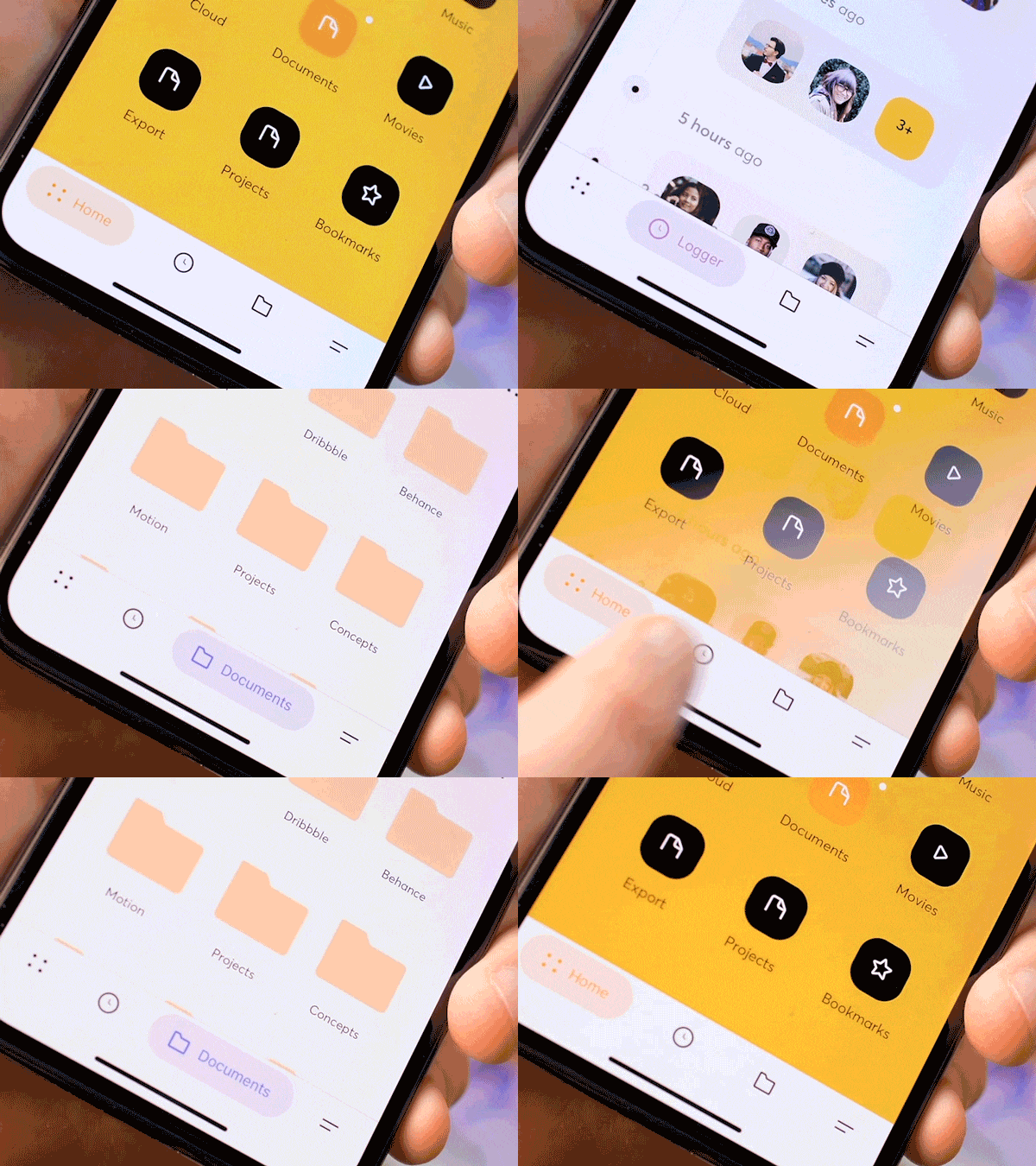
## Requirements
- Android 4.4+
## Example
To run the example project, clone the repo, and run `MainActivity`
## Installation
Add materialdesign library to your project
```
dependencies {
//your project depencies here
implementation "com.google.android.material:material:1.0.0"
}
```
### As library
#### GitHub Packages
Step 1 : Generate a Personal Access Token for GitHub
- Inside you GitHub account:
- Settings -> Developer Settings -> Personal Access Tokens -> Generate new token
- Make sure you select the following scopes (“ read:packages”) and Generate a token
- After Generating make sure to copy your new personal access token. You cannot see it again! The only option is to generate a new key.
Step 2: Store your GitHub — Personal Access Token details
- Create a github.properties file within your root Android project
- In case of a public repository make sure you add this file to .gitignore for keep the token private
- Add properties gpr.usr=GITHUB_USERID and gpr.key=PERSONAL_ACCESS_TOKEN
- Replace GITHUB_USERID with personal / organisation Github User ID and PERSONAL_ACCESS_TOKEN with the token generated in #Step 1
Step 3 : Update build.gradle inside the application module
- Add the following code to build.gradle inside the app module that will be using the library
```
def githubProperties = new Properties()
githubProperties.load(new FileInputStream(rootProject.file("github.properties")))
repositories {
maven {
name = "GitHubPackages"
url = uri("https://maven.pkg.github.com/Cuberto/bubble-icon-tabbar-android")
credentials {
/** Create github.properties in root project folder file with
** gpr.usr=GITHUB_USER_ID & gpr.key=PERSONAL_ACCESS_TOKEN
** Or set env variable GPR_USER & GPR_API_KEY if not adding a properties file**/
username = githubProperties['gpr.usr'] ?: System.getenv("GPR_USER")
password = githubProperties['gpr.key'] ?: System.getenv("GPR_API_KEY")
}
}
}
```
- inside dependencies of the build.gradle of app module, use the following code
```
dependencies {
//consume library
implementation 'com.cuberto.bubbleicontabbarandroid:bubbleicontabbarandroid:1.0.2'
....
}
```
Sync project and now you can use bubbleicontabbar library
#### Android Archive Library
[Download](https://github.com/Cuberto/bubble-icon-tabbar-android/packages/68239) bubbleicontabbarandroid-1.0.2.aar from assets, add it to your app module `libs` package and add this to your dependencies
```
dependencies {
//your project depencies here
implementation fileTree(dir: 'libs', include: ['*.aar'])
}
```
Sync project and now you can use bubbleicontabbar library
### Manual
Add `TabBubbleAnimator` `TextColorTransition` and content of res package to your project
## Usage
Add TabLayout to your xml with tabGravity="fill", tabIndicatorHeight="0dp" and tabMode="fixed"
```
```
Create adapter in your Activity, add some fragments and set ViewPager adapter
```
private List mFragmentList = new ArrayList<>();
private TabBubbleAnimator tabBubbleAnimator;
private String[] titles = new String[]{"Home", "Clock", "Folder", "Menu"};
private int[] colors = new int[]{R.color.home, R.color.clock, R.color.folder, R.color.menu};
@Override
protected void onCreate(Bundle savedInstanceState) {
super.onCreate(savedInstanceState);
setContentView(R.layout.activity_main);
mFragmentList.add(new TabFragment(titles[0], colors[0]));
mFragmentList.add(new TabFragment(titles[1], colors[1]));
mFragmentList.add(new TabFragment(titles[2], colors[2]));
mFragmentList.add(new TabFragment(titles[3], colors[3]));
ViewPager viewPager = findViewById(R.id.viewPager);
FragmentStatePagerAdapter adapter = new FragmentStatePagerAdapter(getSupportFragmentManager()) {
@Override
public Fragment getItem(int position) {
return mFragmentList.get(position);
}
@Override
public int getCount() {
return mFragmentList.size();
}
};
viewPager.setAdapter(adapter);
```
Setup your TabLayout with ViewPager
```
TabLayout tabLayout = findViewById(R.id.tabLayout);
tabLayout.setupWithViewPager(viewPager);
```
Create TabBubbleAnimator and tabItem as title, image id and color for each fragment
```
tabBubbleAnimator = new TabBubbleAnimator(tabLayout);
tabBubbleAnimator.addTabItem(titles[0], R.drawable.ic_grid, colors[0]);
tabBubbleAnimator.addTabItem(titles[1], R.drawable.ic_clock,colors[1]);
tabBubbleAnimator.addTabItem(titles[2], R.drawable.ic_folder, colors[2]);
tabBubbleAnimator.addTabItem(titles[3], R.drawable.ic_menu, colors[3]);
```
You can set color for unselected tabs by calling setUnselectedColorId()
```
tabBubbleAnimator.setUnselectedColorId(Color.BLACK);
```
Call highlightTab() for 0 position and add tabBubbleAnimator as OnPageChangeListener to ViewPager
```
tabBubbleAnimator.highLightTab(0);
viewPager.addOnPageChangeListener(tabBubbleAnimator);
```
Call tabBubbleAnimator onStart() and onStop() in appropriate activity methods
```
@Override
protected void onStart() {
super.onStart();
tabBubbleAnimator.onStart((TabLayout) findViewById(R.id.tabLayout));
}
@Override
protected void onStop() {
super.onStop();
tabBubbleAnimator.onStop();
}
```
## iOS
Similar library [BubbleTabBar](https://github.com/Cuberto/bubble-icon-tabbar) by [Cuberto](https://github.com/Cuberto)
## Author
Cuberto Design, info@cuberto.com
## License
BubbleTabBar is available under the MIT license. See the LICENSE file for more info.