# CopilotChatAnalytics
**Repository Path**: mirrors_microsoft/CopilotChatAnalytics
## Basic Information
- **Project Name**: CopilotChatAnalytics
- **Description**: No description available
- **Primary Language**: Unknown
- **License**: MIT
- **Default Branch**: main
- **Homepage**: None
- **GVP Project**: No
## Statistics
- **Stars**: 0
- **Forks**: 0
- **Created**: 2025-06-17
- **Last Updated**: 2025-12-30
## Categories & Tags
**Categories**: Uncategorized
**Tags**: None
## README
# 💬 Copilot Chat and Agent Intelligence Reports
This repository contains two distinct reports: Chat Intelligence and Agent Intelligence. Please select the appropriate template based on your specific use case. This enables more precise analysis of user behaviors, trends, and licensing/readiness across Copilot surfaces.
---
⚠️ **Important usage & compliance disclaimer - this is not official reporting for Chat or Agents**
Please note:
The audit logs from Microsoft Purview are intended to support security and compliance use cases. While they provide visibility into Copilot interactions, they are **not intended** to serve as the sole source of truth for licensing or full-fidelity reporting on Copilot activity.
For the most accurate and reliable usage insights, users are encouraged to refer to data from the **Microsoft 365 Admin Center** and **Viva Insights**. Insights from this report are intended to highlight organic usage trends, not replace official reporting or enforce licensing requirements.
While the tool helps customers better understand their data, Microsoft has **no visibility** into the data that customers input into this template/tool, nor does Microsoft have any control over how it is used or processed.
Customers are solely responsible for ensuring that their use of the template tool complies with all applicable laws and regulations, including those related to data privacy and security.
**Microsoft disclaims any and all liability** arising from or related to customers' use of the template tool.
---
## 🔑 Permissions Required
For Graph API access to Entra user information and mac licensing, you must assign the following Microsoft Graph permissions:
- `User.Read.All`
- `Organization.Read.All`
For Purview data, you will need one of the following roles:
- `View-Only Audit Logs role (read-only, recommended for production)`
- `Audit Logs role (if write operations needed elsewhere)`
- `Member of appropriate role groups in Microsoft Purview compliance portal`
These permissions are required for both user info and mac licensing data (the latter is technically in Entra as well).
---
## 📊 What This Report Provides
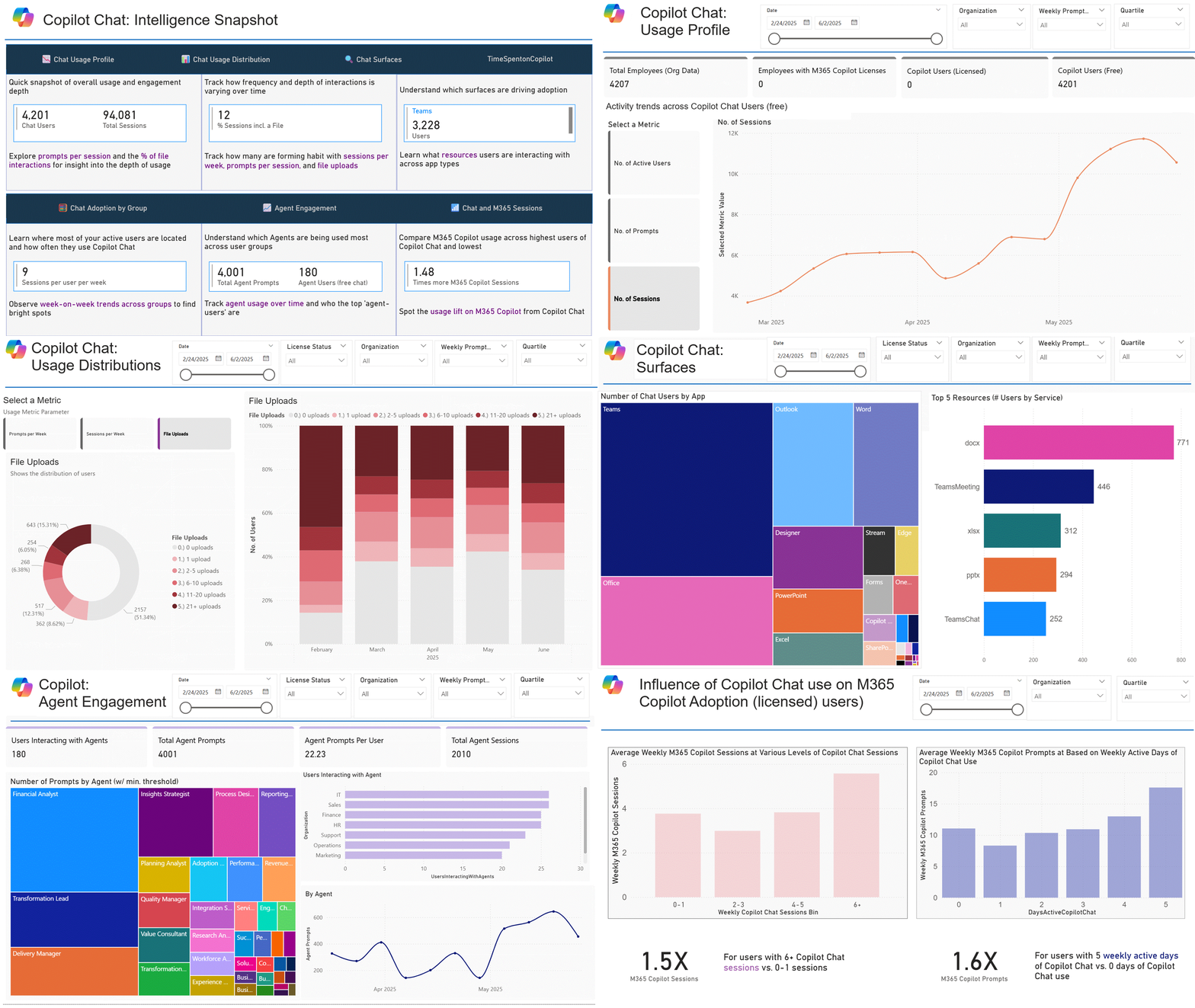
- **Visibility into Copilot Chat usage** across prompts, sessions, agents, and surfaces.
- **Breakdown of user engagement levels** to track progression from light to habitual use.
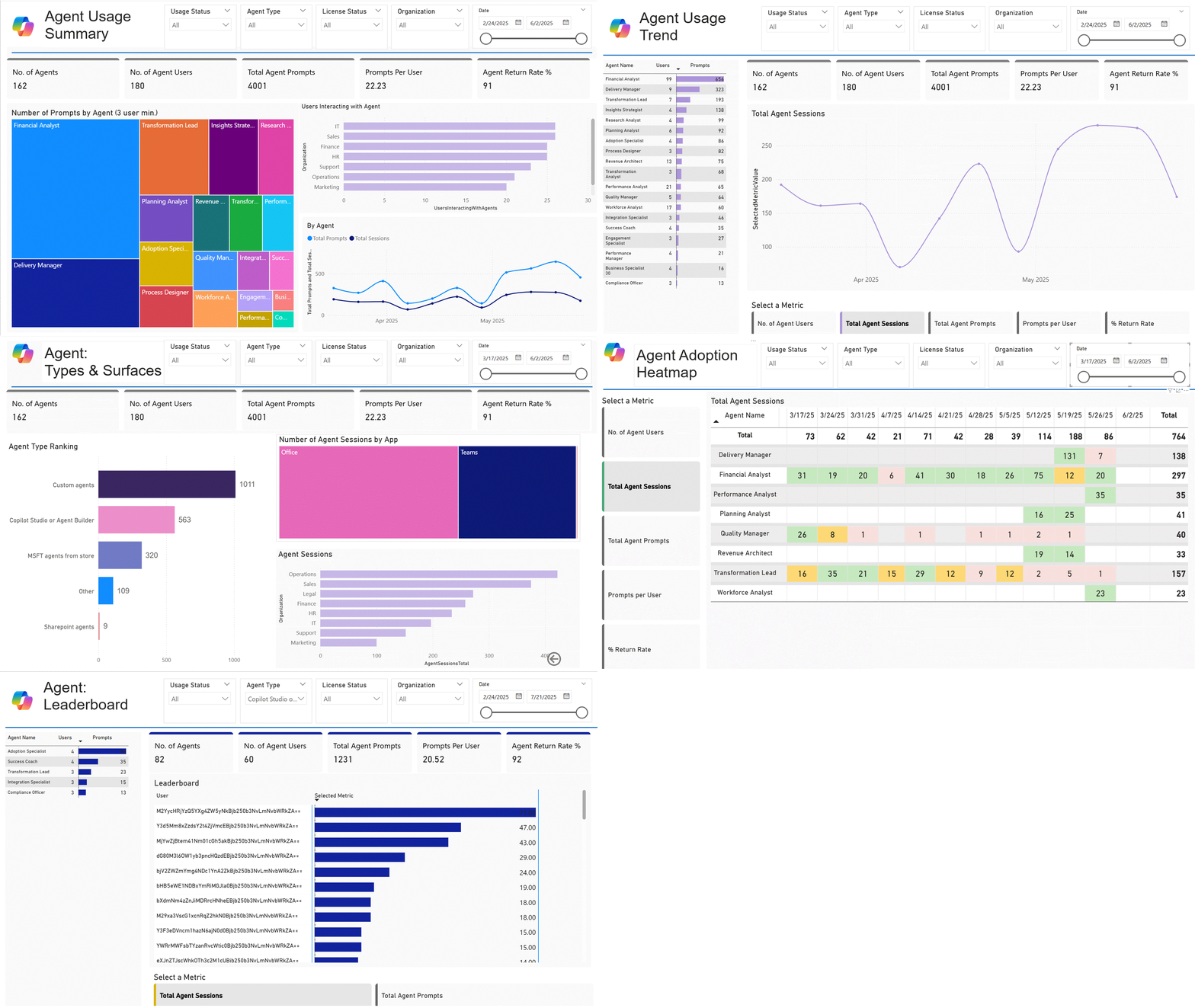
- **Insights into agent adoption** across licensed vs. free experiences.
- **Segmented views by org, quartile, and surface** to identify adoption hotspots and gaps.
---
## 🚀 How This Helps Leaders
- **Inform smarter Copilot licensing decisions** using real usage signals—maximize ROI by targeting high-readiness users.
- **Accelerate AI readiness** by identifying where skills are organically developing, even before formal rollout.
- **Connect usage across platforms** (Chat, M365, agents) to get a unified view of adoption trends and surface-specific value.
- **Prioritize enablement efforts** based on actual usage patterns—focus resources where they’ll have the most impact.
▶️ Preview Chat Intelligence (GIF)
▶️ Preview Agent Intelligence (GIF)
## ✅ What You’ll Do
📤 Step 1: Export 3 Files
- **Copilot interactions audit log** from Microsoft Purview
- **Copilot licensed user list** from Microsoft 365 Admin Center
- **Org data** from Microsoft Entra Admin Center
🔐 Step 2: Provide Hash String & Connect Files
- Supply a text string to be used for hashing and de-identifying sensitive identifiers
- Paste full file paths for each CSV into the Power BI (PBI) template:
## 📁 Detailed Steps
🔍 Copilot Audit Logs from Purview
- Go to: [security.microsoft.com](https://security.microsoft.com)
- In the left pane, scroll down and click **Audit**
- Ensure you have appropriate compliance roles (e.g., **Audit Reader**). If not, contact your IT admin
- In **Activities > Friendly Names**, select:
`Copilot Activities – Interacted with Copilot`
- Set a **Date Range** (recommended: 3–6 months)
- Give your search a name and click **Search**
- Once the status changes to **Completed**, click into it
- Select **Export > Download all results**
📖 Learn more: [Export, configure, and view audit log records – Microsoft Learn](https://learn.microsoft.com/en-us/microsoft-365/compliance/audit-log-search)
👤 Licensed User List from MAC
- Go to: [admin.microsoft.com](https://admin.microsoft.com)
- Log in as a **Microsoft 365 Global Administrator**
- To unhide usernames in MAC reports:
- Go to **Settings > Org Settings**, then under the **Services** tab, choose **Reports**
- Deselect **Display concealed user, group, site names in all reports**
- Click **Save changes**
- Navigate to: **Reports > Usage > Microsoft 365 Copilot**
- In the **Readiness** tab, scroll to **Copilot Readiness Details**
- Select column: `Has Copilot license assigned`
- Click the ellipsis (`...`) and choose **Export** to download the file as `.csv`
📖 Learn more: [Microsoft 365 Copilot Readiness Report – Microsoft Learn](https://learn.microsoft.com/en-us/microsoft-365/admin/activity-reports/microsoft-365-copilot-readiness)
📥 User and Org Data from Entra
1. Sign in to the [Microsoft Entra admin center](https://entra.microsoft.com)
2. In the left-hand navigation, go to: `Identity ➝ Users`
3. Select **All users**
4. Click the **“Download users”** button (in the toolbar or under the `...` menu)
5. In the download dialog:
- Select the attributes to include in the CSV
- **Required fields**:
- `UserPrincipalName`
- `Department`
- **Optional fields**:
- Choose as appropriate
6. Choose **CSV format** and click **Download**
📖 Learn more: [Download a list of users – Microsoft Learn](https://learn.microsoft.com/en-us/entra/identity/users/users-bulk-download)
💡 _Note: Avoid downloading non-essential attributes as it can degrade performance._
📊 Open Power BI Template & Set File Paths
- Download the provided Power BI report template (`.PBIT`)
- Select Agent Usage template for analyzing agents and Chat Intelligence for deep analysis on Chat interactions
- Open the `.pbit` file in **Power BI Desktop**
- When prompted, paste in the full file paths for the three CSVs you downloaded:
- `Copilot_Activities.csv`
- `Copilot_Licensed_Users.csv`
- `Org_Data.csv`
- Provide a text string to hash and obfuscate identifiers. This will deidentify sensitive data and makes it easier to share.
- This will connect the template to your data and begin processing