# Toolbelt.Blazor.HotKeys2
**Repository Path**: pine555/Toolbelt.Blazor.HotKeys2
## Basic Information
- **Project Name**: Toolbelt.Blazor.HotKeys2
- **Description**: No description available
- **Primary Language**: C#
- **License**: MPL-2.0
- **Default Branch**: main
- **Homepage**: None
- **GVP Project**: No
## Statistics
- **Stars**: 0
- **Forks**: 0
- **Created**: 2024-03-18
- **Last Updated**: 2024-03-18
## Categories & Tags
**Categories**: Uncategorized
**Tags**: None
## README
# Blazor HotKeys2 [](https://www.nuget.org/packages/Toolbelt.Blazor.HotKeys2/) [](https://github.com/jsakamoto/Toolbelt.Blazor.HotKeys2/actions/workflows/unit-tests.yml)
## Summary
This is a class library that provides configuration-centric keyboard shortcuts for your Blazor apps.
**(This library is a successor of [the "Blazor HotKeys" library](https://github.com/jsakamoto/Toolbelt.Blazor.HotKeys).)**
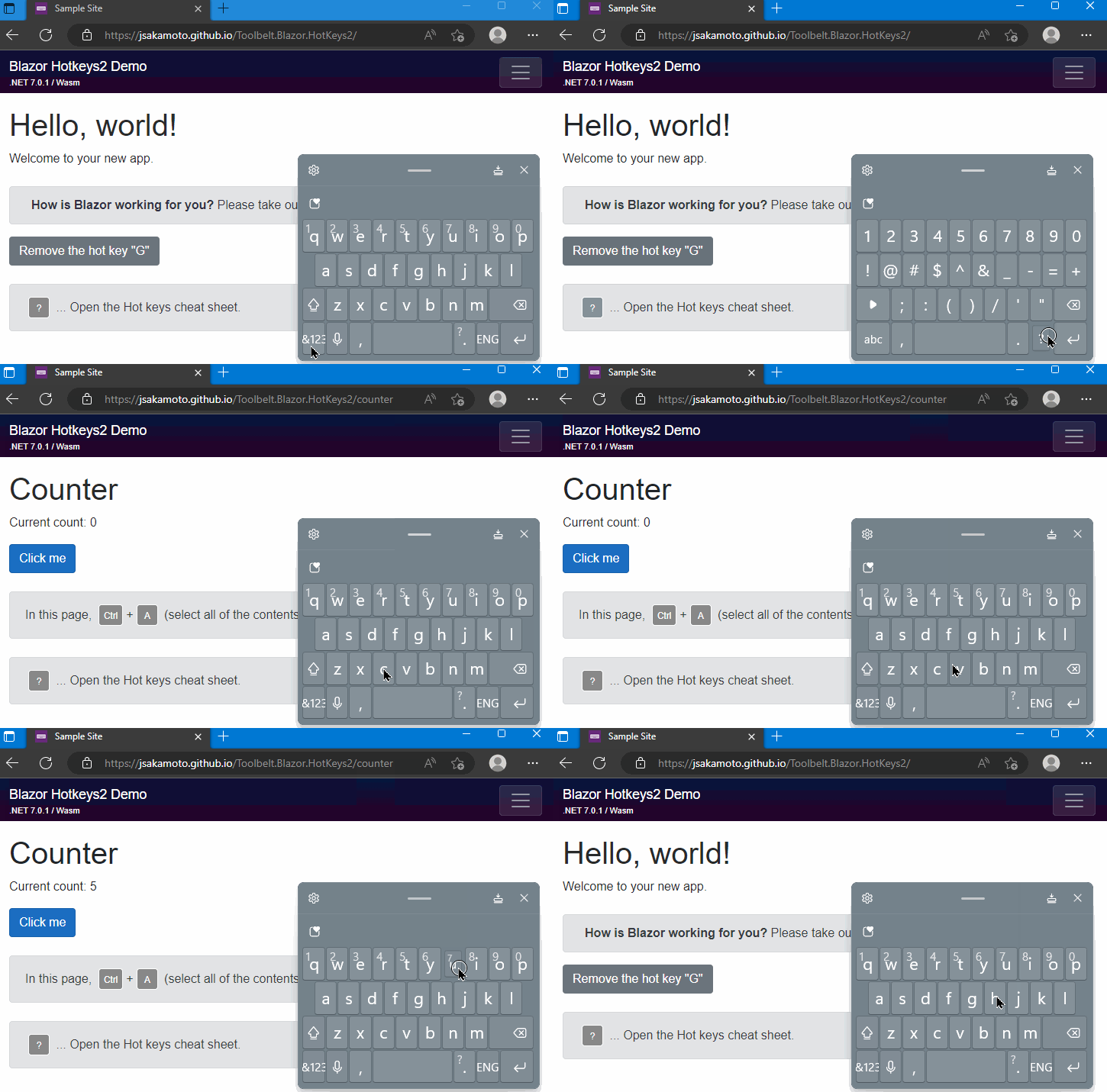
- [Live demo](https://jsakamoto.github.io/Toolbelt.Blazor.HotKeys2/)
You can declare associations of keyboard shortcut and callback action, like this code:
```csharp
// The method "OnSelectAll" will be invoked
// when the user typed Ctrl+A key combination.
this.HotKeysContext = this.HotKeys.CreateContext()
.Add(ModCode.Ctrl, Code.A, OnSelectAll)
.Add(...)
...;
```
## Supported Blazor versions
This library suppots ASP.NET Core Blazor version 6.0, 7.0, 8.0 or later.
## How to install and use?
### 1. Installation and Registration
**Step.1** Install the library via NuGet package, like this.
```shell
> dotnet add package Toolbelt.Blazor.HotKeys2
```
**Step.2** Register "HotKeys" service into the DI container.
```csharp
// Program.cs
using Toolbelt.Blazor.Extensions.DependencyInjection; // 👈 1. Add this line
...
builder.Services.AddHotKeys2(); // 👈 2. Add this line
...
```
### 2. Usage in your Blazor component (.razor)
**Step.1** Implement `IDisposable` interface to the component.
```razor
@implements IDisposable @* 👈 Add this at the top of the component. *@
...
@code {
...
public void Dispose() // 👈 Add "Dispose" method.
{
}
}
```
**Step.2** Open the `Toolbelt.Blazor.HotKeys2` namespace, and inject the `HotKeys` service into the component.
```razor
@implements IDisposable
@using Toolbelt.Blazor.HotKeys2 @* 👈 1. Add this *@
@inject HotKeys HotKeys @* 2. 👈 Add this *@
...
```
**Step.3** Invoke `CreateContext()` method of the `HotKeys` service instance to create and activate hot keys entries at startup of the component such as `OnInitialized()` method.
You can add the combination with key and action to the `HotKeysContext` object that is returned from `CreateContext()` method, using `Add()` method.
Please remember that you have to keep the `HotKeys Context` object in the component field.
```csharp
@code {
private HotKeysContext? HotKeysContext;
protected override void OnInitialized()
{
this.HotKeysContext = this.HotKeys.CreateContext()
.Add(ModCode.Ctrl|ModCode.Shift, Code.A, FooBar, new() { Description = "do foo bar." })
.Add(...)
...;
}
private void FooBar() // 👈 This will be invoked when Ctrl+Shift+A typed.
{
...
}
}
```
> **Note**
> You can also specify the async method to the callback action argument.
> **Note**
> The method of the callback action can take an argument which is `HotKeyEntryByCode` or `HotKeyEntryByKey` object.
**Step.4** Dispose the `HotKeysContext` object when the component is disposing, in the `Dispose()` method of the component.
```csharp
@code {
...
public void Dispose()
{
this.HotKeysContext?.Dispose(); // 👈 1. Add this
}
}
```
The complete source code (.razor) of this component is bellow.
```csharp
@page "/"
@implements IDisposable
@using Toolbelt.Blazor.HotKeys2
@inject HotKeys HotKeys
@code {
private HotKeysContext? HotKeysContext;
protected override void OnInitialized()
{
this.HotKeysContext = this.HotKeys.CreateContext()
.Add(ModCode.Ctrl|ModCode.Shift, Code.A, FooBar, new() { Description = "do foo bar." })
}
private void FooBar()
{
// Do something here.
}
public void Dispose()
{
this.HotKeysContext?.Dispose();
}
}
```
### How to enable / disable hotkeys depending on which element has focus
You can specify enabling/disabling hotkeys depending on which kind of element has focus at the hotkeys registration via a combination of the `Exclude` flags in the property of the option object argument of the `HotKeysContext.Add()` method.
The default value of the option object's `Exclude` flag property is the following combination.
```csharp
Exclude.InputText | Exclude.InputNonText | Exclude.TextArea
```
This means hotkeys are disabled when the focus is in `` (with any `type`) or `