# ubuntu
**Repository Path**: ros-org/ubuntu
## Basic Information
- **Project Name**: ubuntu
- **Description**: No description available
- **Primary Language**: Unknown
- **License**: Not specified
- **Default Branch**: master
- **Homepage**: None
- **GVP Project**: No
## Statistics
- **Stars**: 0
- **Forks**: 0
- **Created**: 2020-08-12
- **Last Updated**: 2020-12-19
## Categories & Tags
**Categories**: Uncategorized
**Tags**: None
## README
# download iso
open
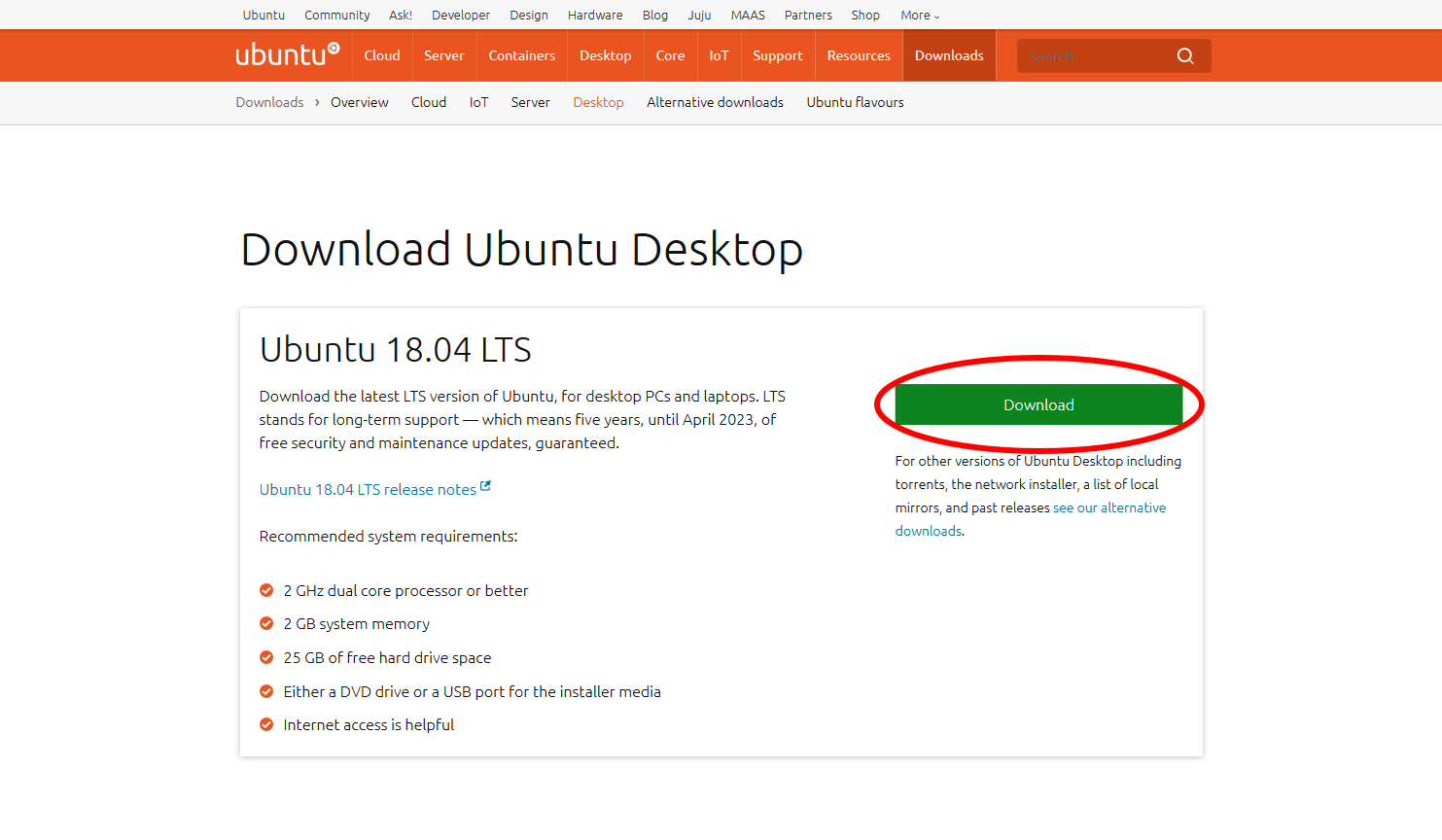
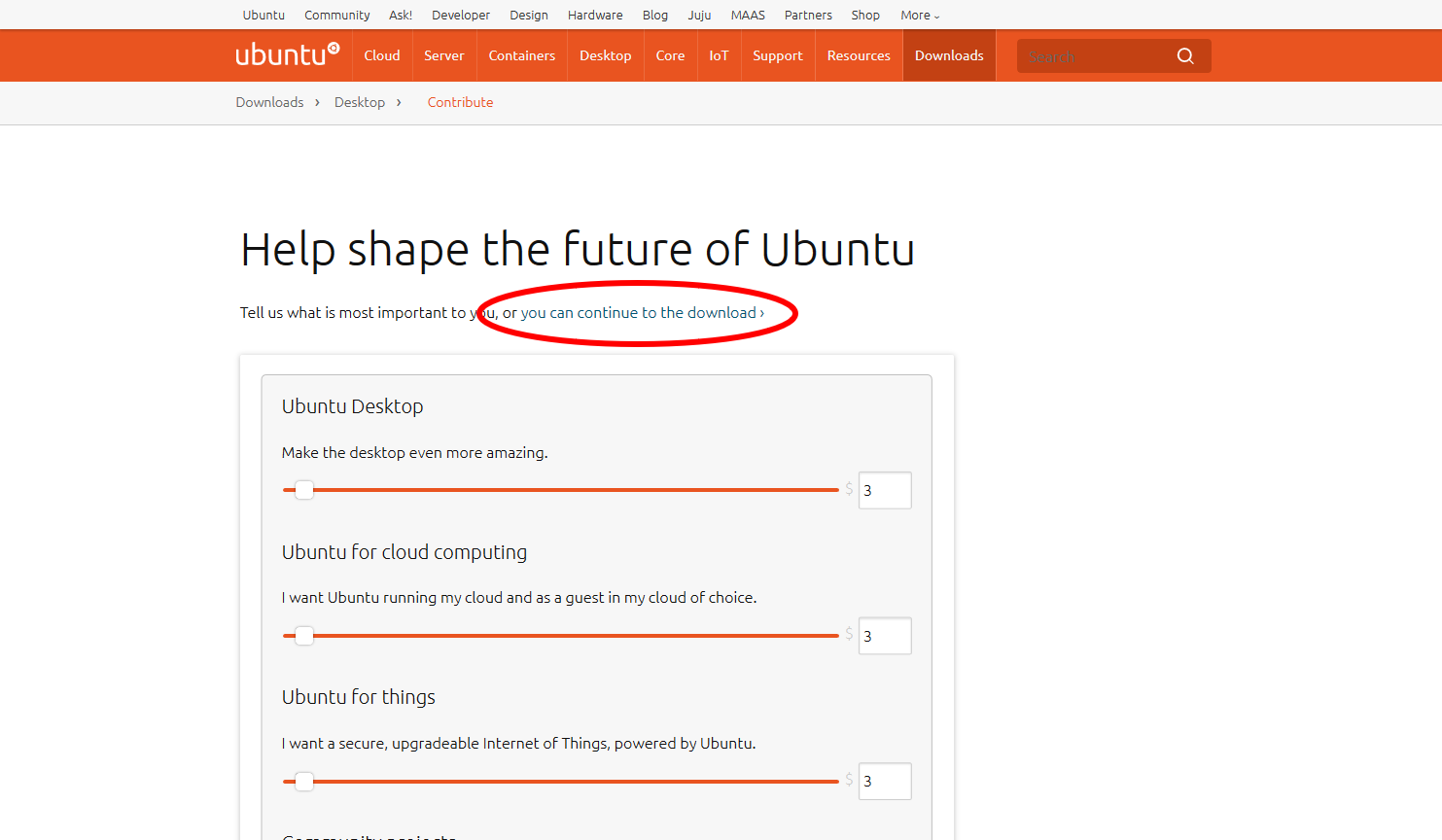
use other software (e.g. ultraiso) to make boot disk if necessary
***
# install system
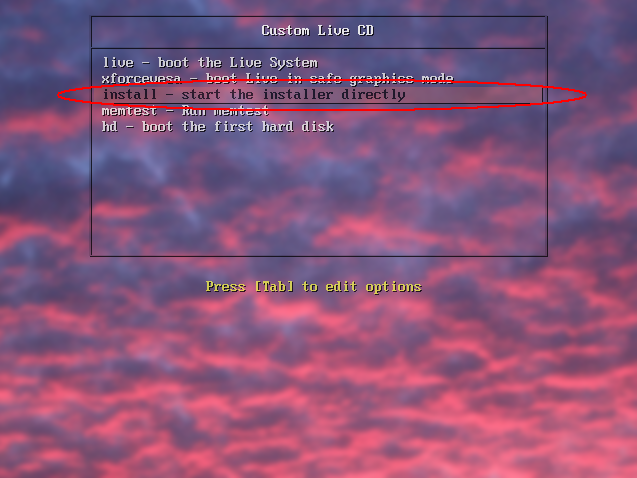
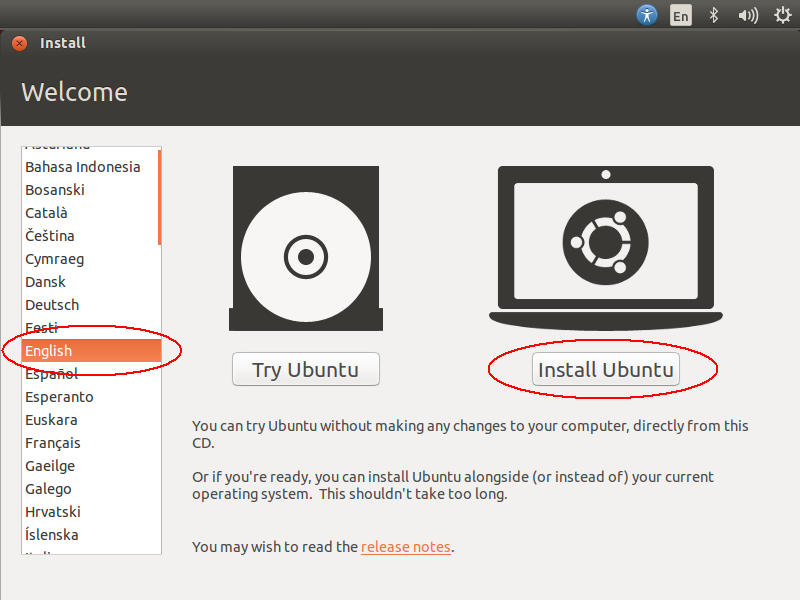
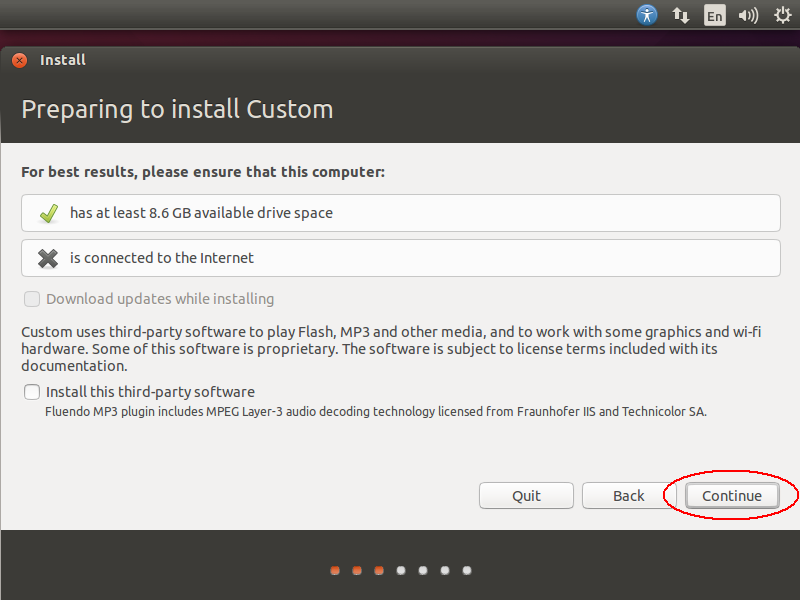
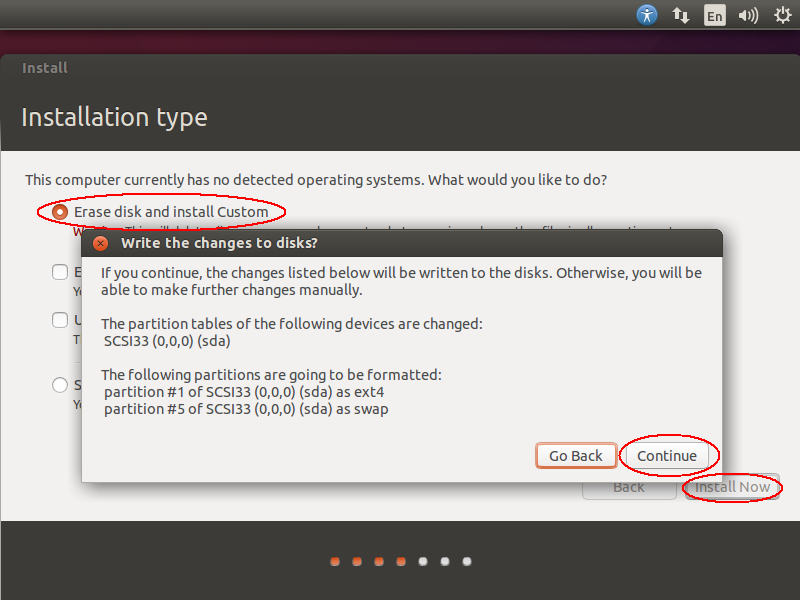
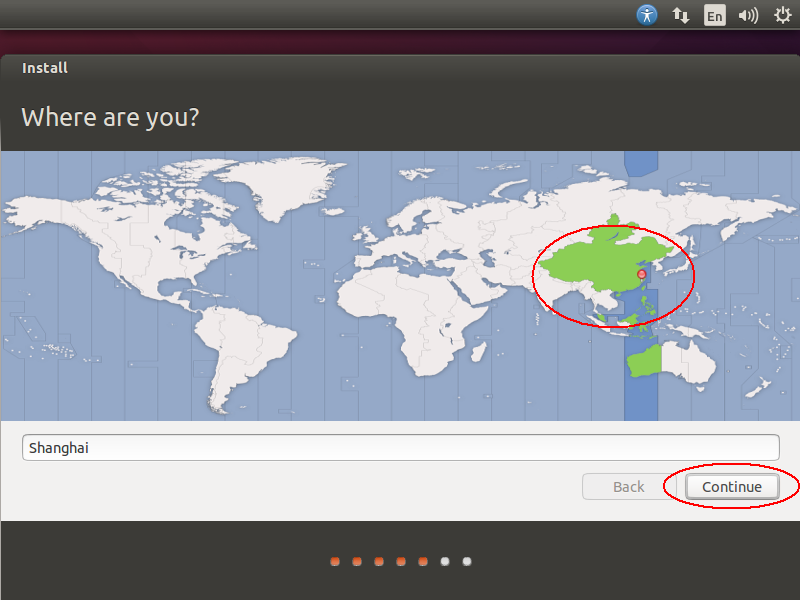
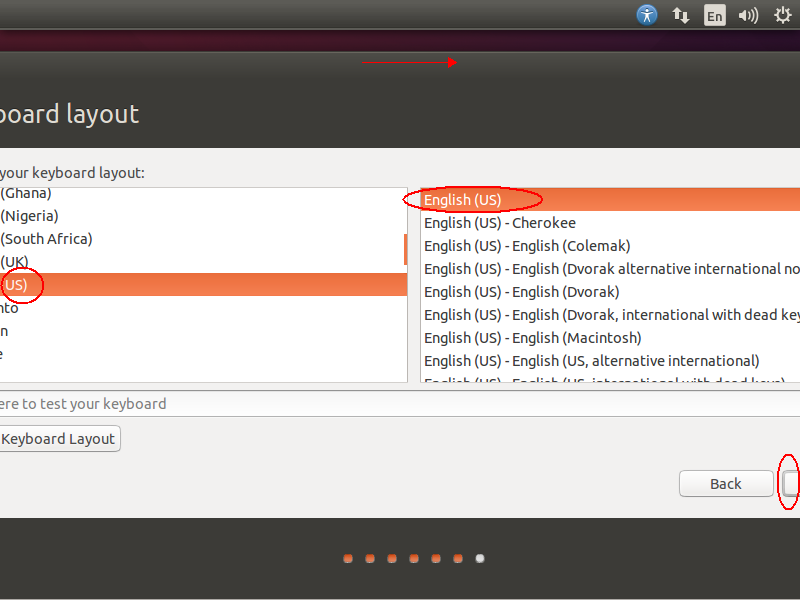
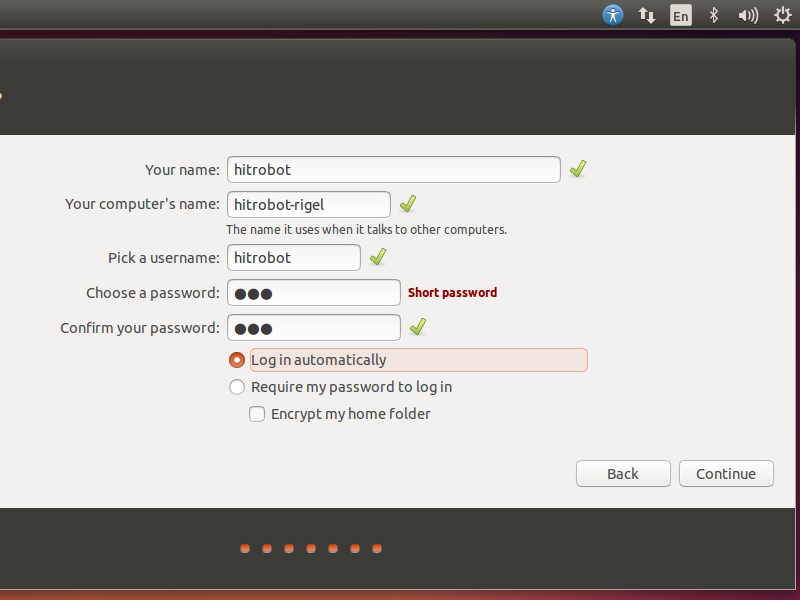
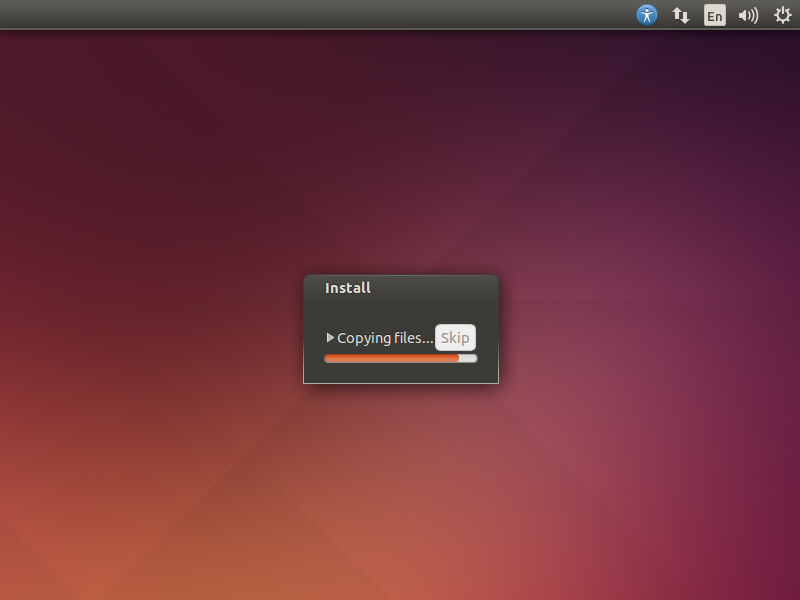
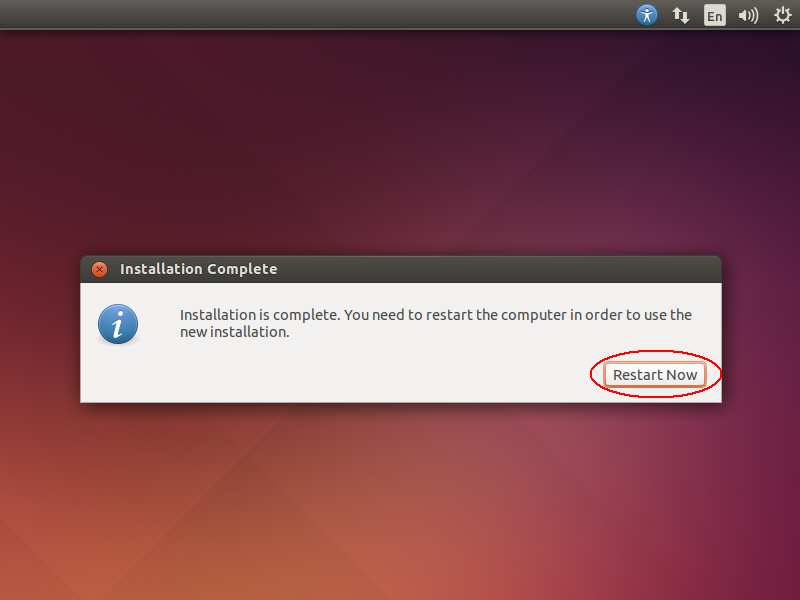
note that if ubuntu system was reinstalled this hostname settings page may not be presented
***
# fake monitor
set scaling factor to 2 if hi-dpi screen enabled
>$ gsettings set org.gnome.desktop.interface scaling-factor 2
fake a virtual monitor temperarily if gui program open failed
>$ xrandr --newmode "hitrobot" 49.00 1024 1072 1168 1312 600 603 613 624 -hsync +vsync
>$ xrandr --addmode VIRTUAL1 hitrobot
retry gui program (e.g. rviz) and good luck
***
# configure network
bind eth0 to staic address for legacy linux network (not recommended)
>$ sudo vi /etc/network/interfaces
#auto lo
#iface lo inet loopback
auto eth0
iface eth0 inet static
address 192.168.0.7
netmask 255.255.255.0
reset eth0 to static address once for legacy linux network (not recommended)
>$ ifconfig eth0 [ip_address] netmask [ip_netmask] up
add connection in network manager gui mode (recommended)
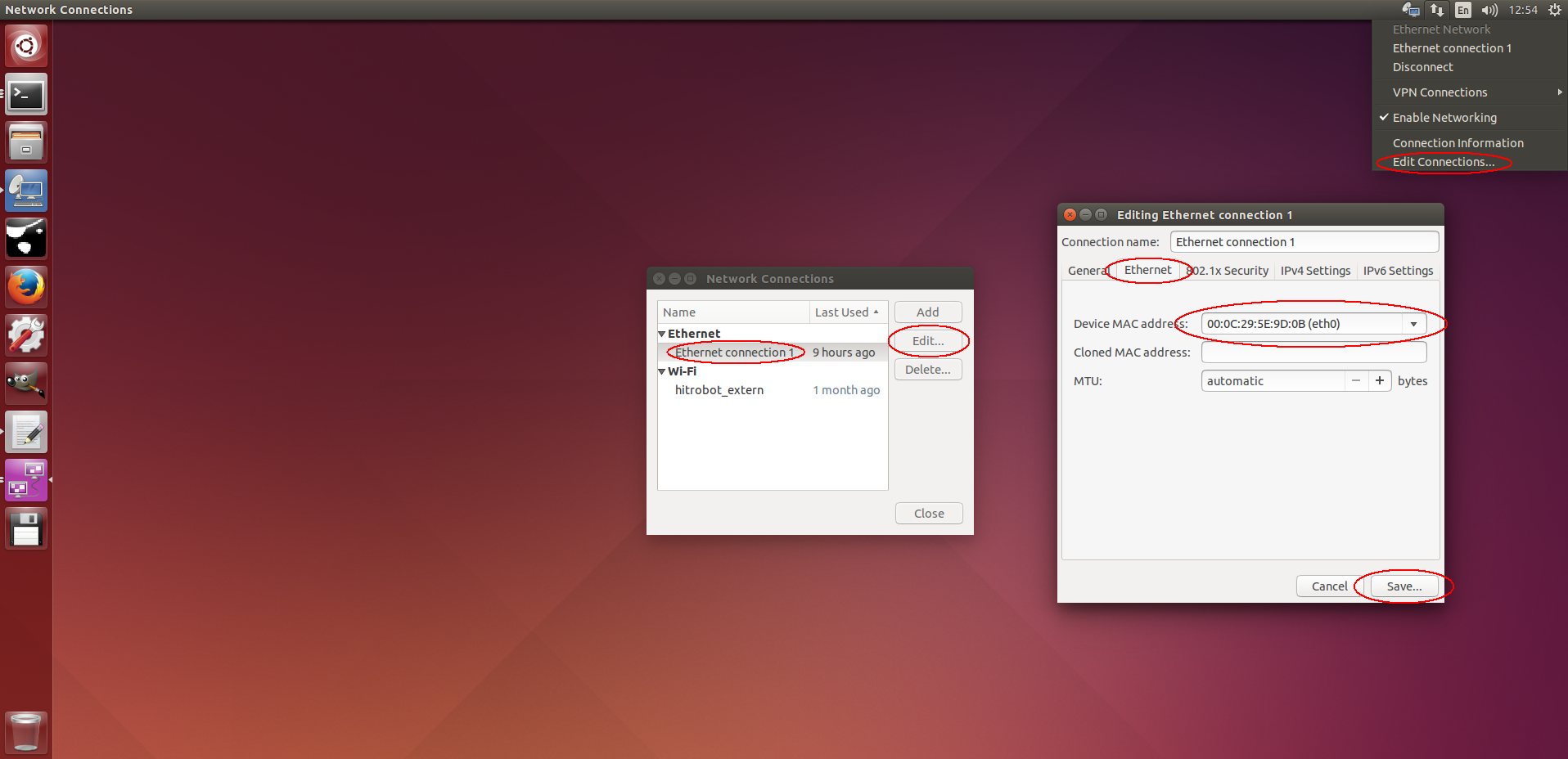
set connection in network manager config file (strongly recommended)
>$ sudo vi /etc/NetworkManager/system-connections/wifi_ssid
[connection]
id=ChinaNet-ouiyeah
uuid=cb9d0600-2d5f-4430-b874-9aeb67914d2f
type=802-11-wireless / 802-3-ethernet
autoconnect=true
[802-3-ethernet]
duplex=full
mac-address=0:1d:72:37:a9:df
[802-11-wireless]
ssid=ChinaNet-ouiyeah
mode=infrastructure
mac-address=40:E2:30:C3:76:43
security=802-11-wireless-security
[802-11-wireless-security]
key-mgmt=wpa-psk
psk=Can@jingt0
[ipv4]
method=manual / shared
dns=192.168.0.1;
addresses1=192.168.0.7/24,192.168.0.1
[ipv6]
method=auto
remember to set the link for network connection if failed to visit websites after installation
>$ sudo ln -s /run/resolvconf/resolv.conf /etc/resolv.conf
***
# remote access
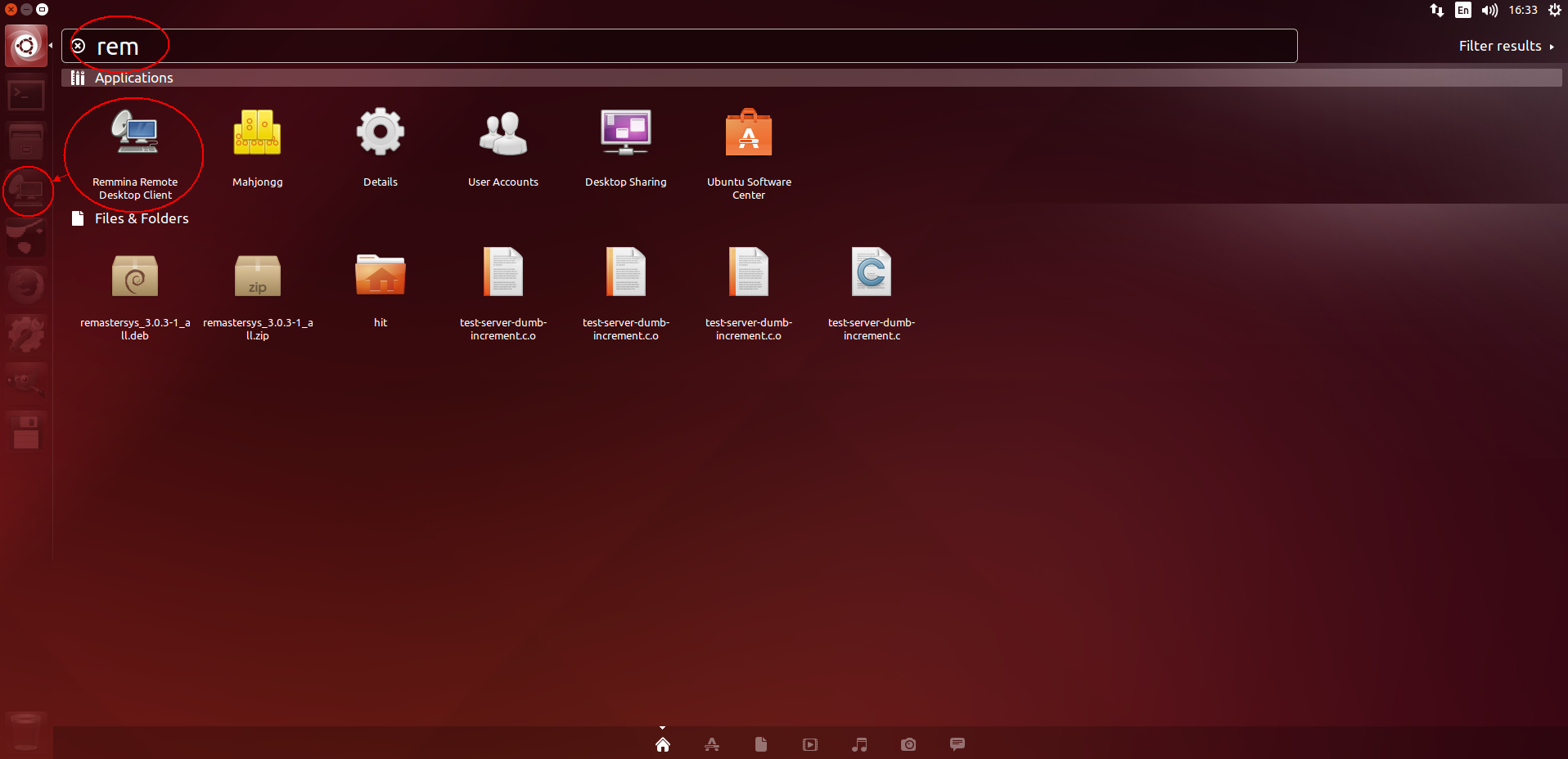
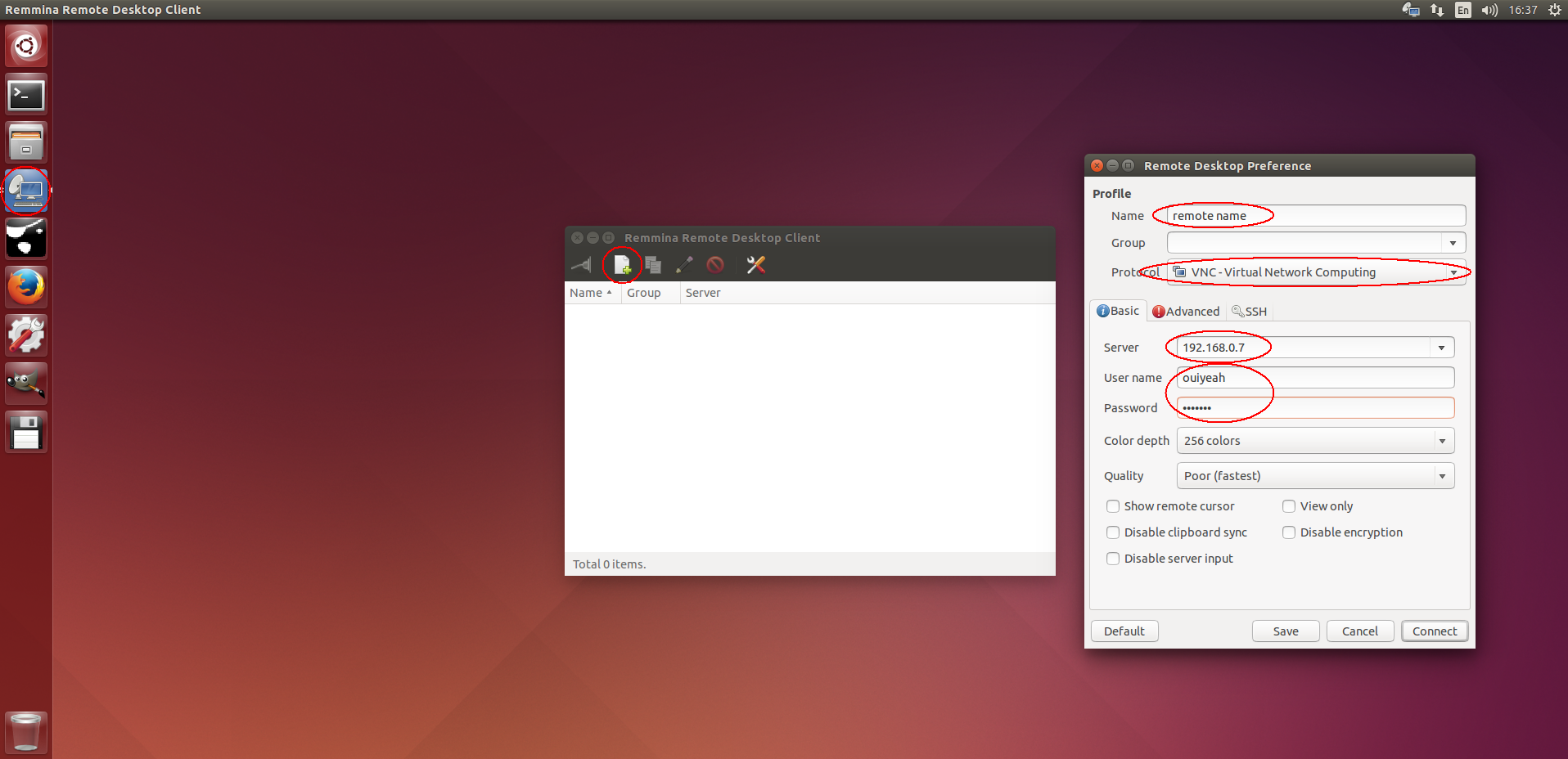
set remmina if it is used as terminal
>$ sudo apt-get install remmina
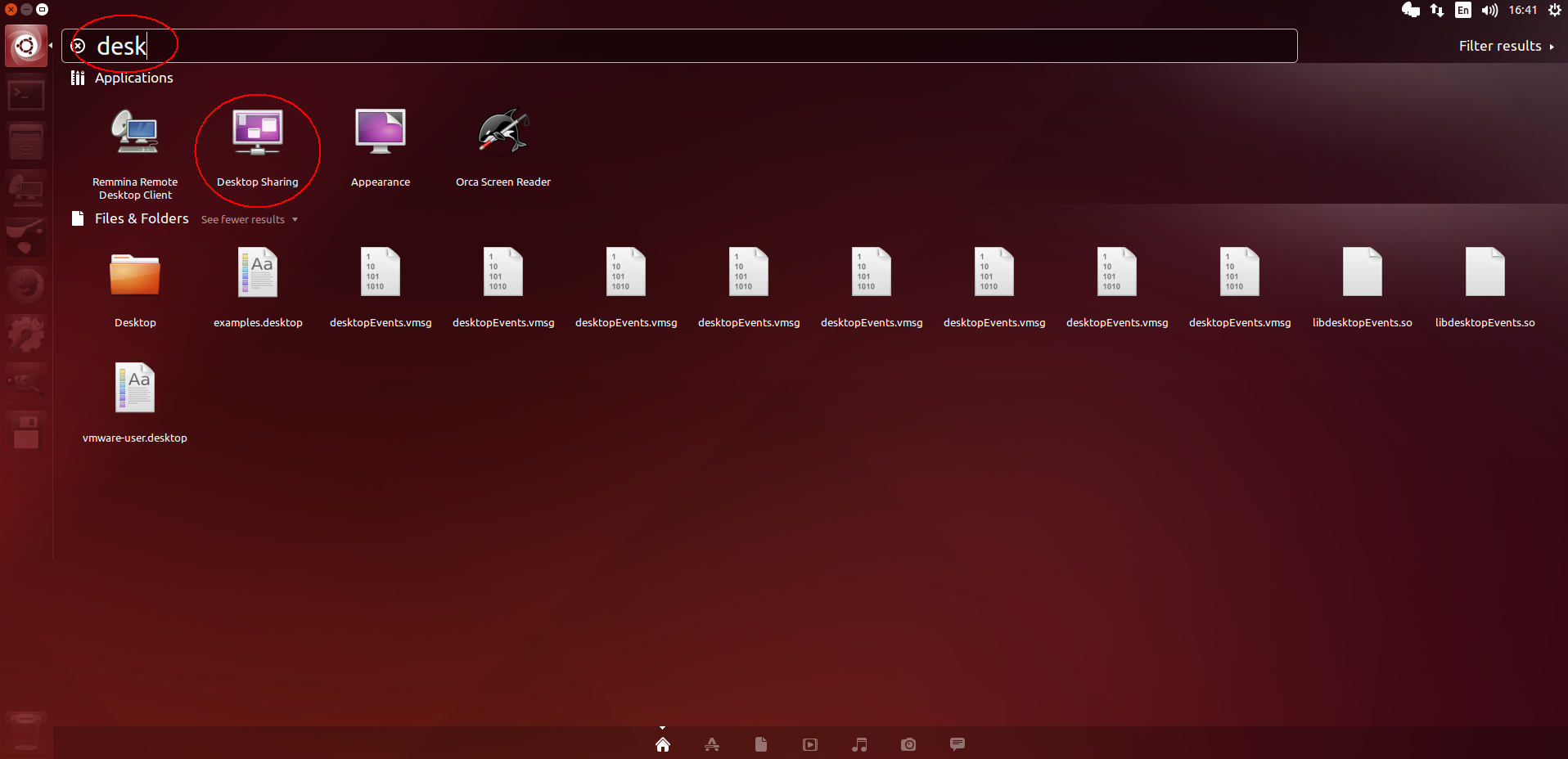
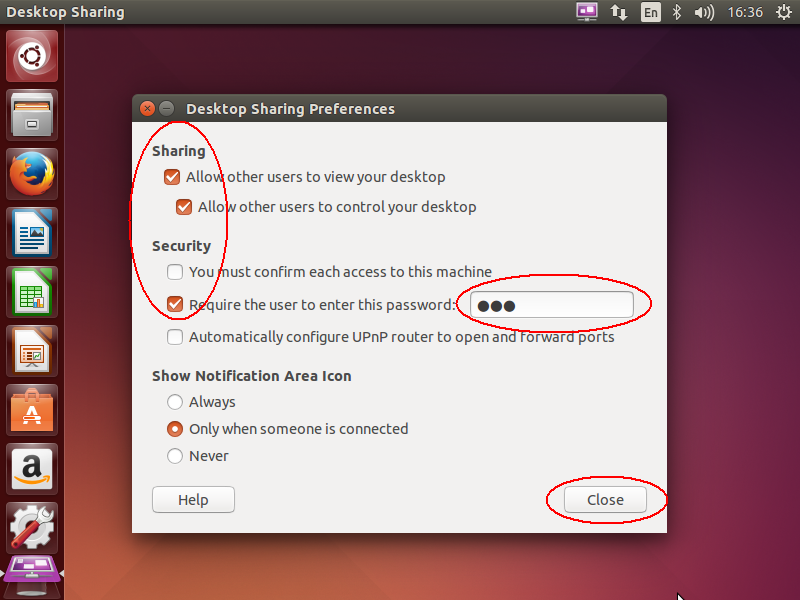
set desktop sharing if it is used as host
>$ sudo apt-get install vino
set vnc4server for connecting ubuntu from other system terminal (e.g. windows / ubuntu)
>$ sudo apt-get install vnc4server
>$ sudo apt-get install xrdp
>$ sudo apt-get install dconf-editor
open dconf-editor and visit org > gnome > desktop > remote-access
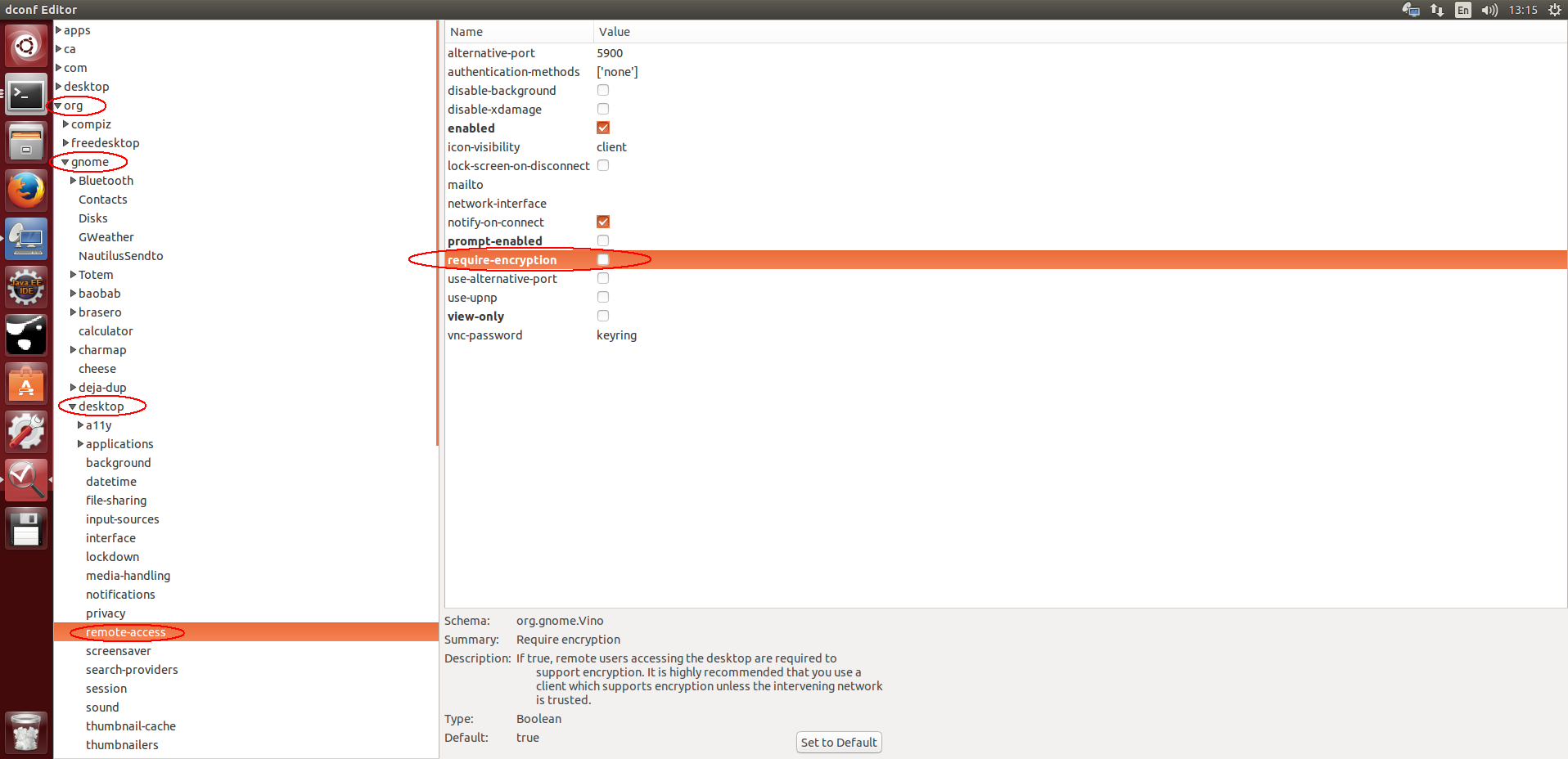
uncheck the "requlre-encryption" attribute
set x11vnc for connecting odroid-ubuntu from windows
>$ sudo apt-get install x11vnc
>$ sudo apt-get install xrdp
>$ sudo vi /etc/init/x11vnc.conf
start on login-session-start
script
x11vnc -display :0 -auth /var/run/lightdm/root/:0 -forever -shared -bg -o /var/log/x11vnc.log -rfbport 5900 -tightfilexfer
end script
use remote desktop from rdp to vnc
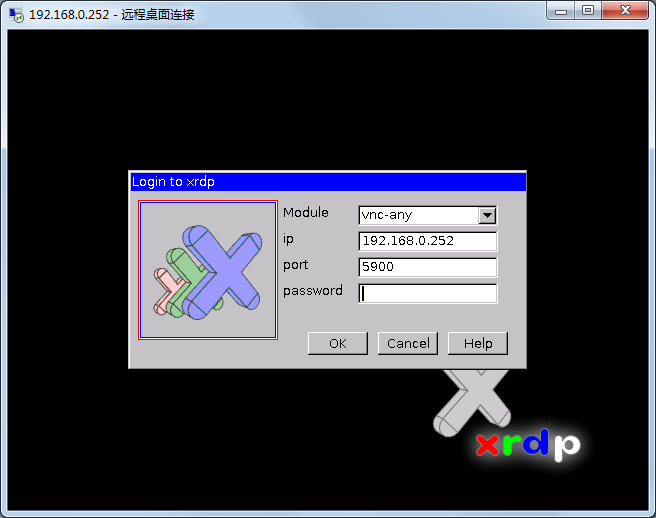
use [tightvnc](https://raw.githubusercontent.com/ouiyeah/ubuntu/master/pkg/tightvnc-2.7.10-setup-64bit.msi) to copy and paste clipboard between windows and linux
use scp to copy files between linux systems and use [pscp](https://raw.githubusercontent.com/ouiyeah/ubuntu/master/pkg/putty.zip) to copy files from or to windows
use [teamviewer](https://www.teamviewer.com/en/download/) to fulfill remote access worldwide
***
# set permissions
cancel sudo password
>$ sudo sed -i -e "/%sudo\s*ALL=(ALL:ALL)\s*ALL/ c %sudo\tALL=(ALL:ALL) NOPASSWD:ALL" /etc/sudoers
use pkexec command if sudo failed
>$ pkexec visudo -f /etc/sudoers
save (ctrl^o + return) and exit (ctrl^x)
change powerbtn event to shutdown immediately (legacy)
>$ sudo sed -i -e "/action=\/etc\/acpi\/powerbtn.sh/ c action=sudo /sbin/shutdown -h now" /etc/acpi/events/powerbtn
change powerbtn event to reset communication (current)
>$ sudo sed -i -e "/action=\/etc\/acpi\/powerbtn.sh/ c action=/etc/acpi/comm-reset.sh" /etc/acpi/events/powerbtn
>$ sudo ln -s ~/catkin_ws/comm-reset.sh /etc/acpi/comm-reset.sh
>$ sudo service acpid restart
open dconf-editor and visit org > gnome > settings-daemon > plugins > power
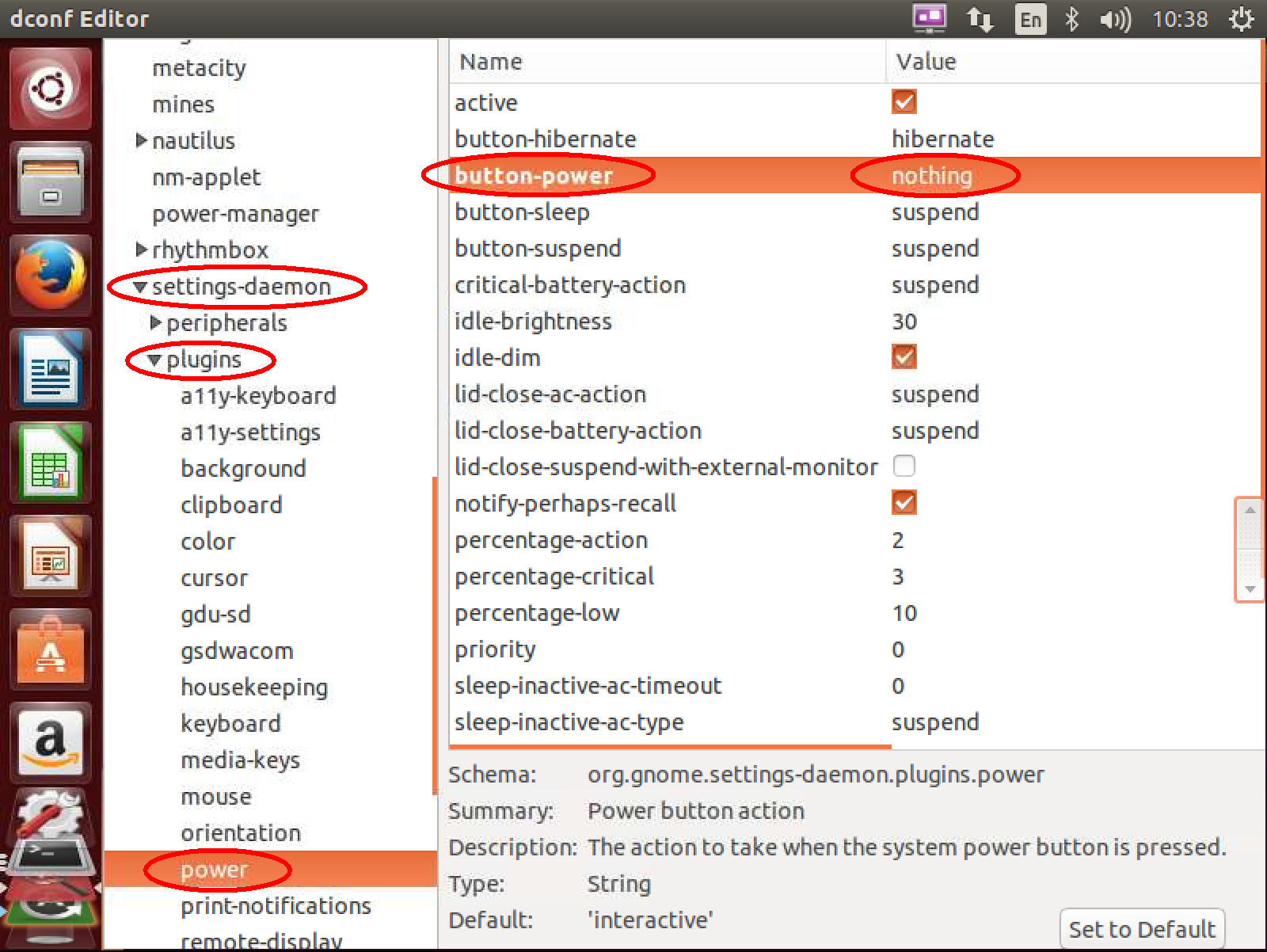
change the "button-power" attribute to "nothing"
add current user to dialout group for tty authority
>$ sudo usermod -aG dialout $(whoami)
create tty rule file for current user
>$ echo 'KERNEL=="ttyS[0-9]*", MODE="0666"' | sudo tee -a /etc/udev/rules.d/70-persistent-tty.rules
>$ echo 'KERNEL=="ttyUSB[0-9]*", MODE="0666"' | sudo tee -a /etc/udev/rules.d/70-persistent-tty.rules
lookup and bind the device id
>$ udevadm info /dev/ttyUSB0 (e.g. USB0 ID_PATH=pci-0000:00:1a.0-usb-0:1.2:1.0)
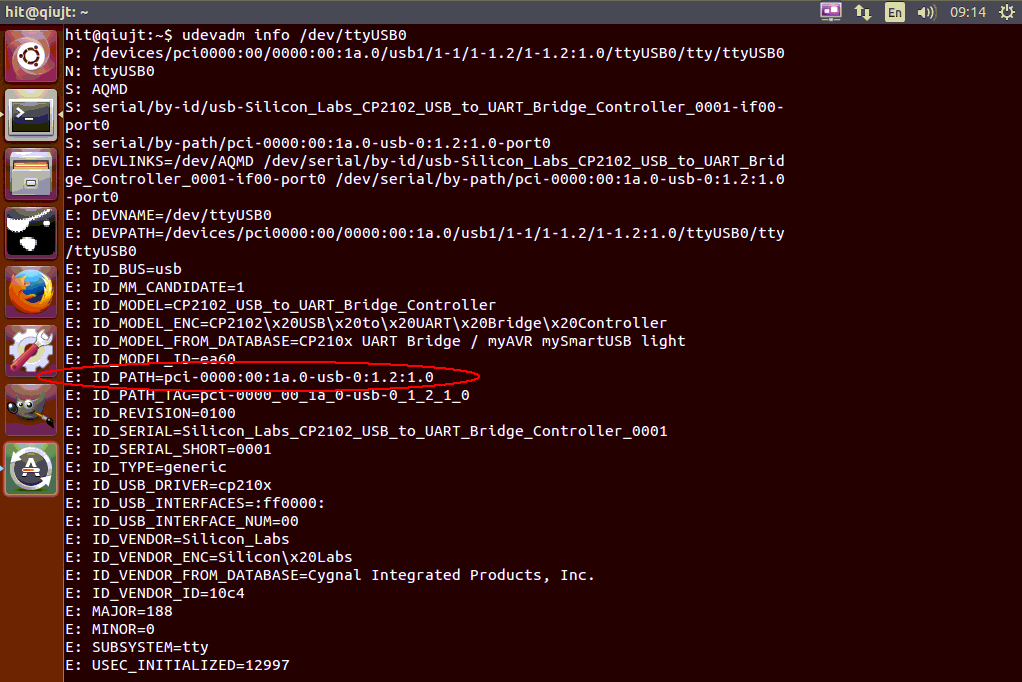
>$ echo 'SUBSYSTEM=="tty", ENV{ID_PATH}=="pci-0000:00:1a.0-usb-0:1.2:1.0", SYMLINK+="alias_name(e.g.)"' | sudo tee -a /etc/udev/rules.d/70-persistent-tty.rules
revise grub file in order to skip boot-in check if necessary
>$ sudo sed -i '177s/ ro / rw /' /etc/grub.d/10_linux
>$ sudo update-grub
***
# install softwares
install google input source for ibus (or fcitx)
>$ sudo apt-get install ibus-googlepinyin (or fcitx-googlepinyin)
install basic development toolkits
>$ sudo apt-get install vim ssh htop cutecom setserial imagemagick
set git config for user name and email
>$ sudo apt-get install git
>$ git config --global user.name \`hostname\`
>$ git config --global user.email $USER@hitrobotgroup.com
>$ git config --global credential.helper store
generate ssh-key and add ~/.ssh/id_rsa.pub to github if necessary
>$ ssh-keygen -t rsa -C $USER@hitrobotgroup.com
may need to add ssh only if the system isn’t doing it for you automatically.
>$ ssh-add ~/.ssh/id_rsa
install gitg for git and rapidsvn for svn
>$ sudo apt-get install gitg rapidsvn meld
link git repository
>$ git clone https://github.com/hitrobotgroup/release
>$ git clone git@github.com:ros-org/ros_org.git
fix git error if necessary
>$ find .git/objects/ -type f -empty | xargs rm
link svn repository if rapidsvn is failed to get permanent certification
>$ svn list https://10.1.11.10/svn/LaserGPS1 (e.g.)
remove all backup~ files from svn if necessary
>$ find . -name *~ -exec rm {} \;
set "subl" and "meld" in the preference of rapidsvn
install partition tools if necessary
>$ sudo apt-get install gparted
install mysql database if necessary
>$ sudo apt-get install mysql-server
>$ sudo apt-get install mysql-client
>$ sudo apt-get install libmysqlclient-dev
***
# auto startup
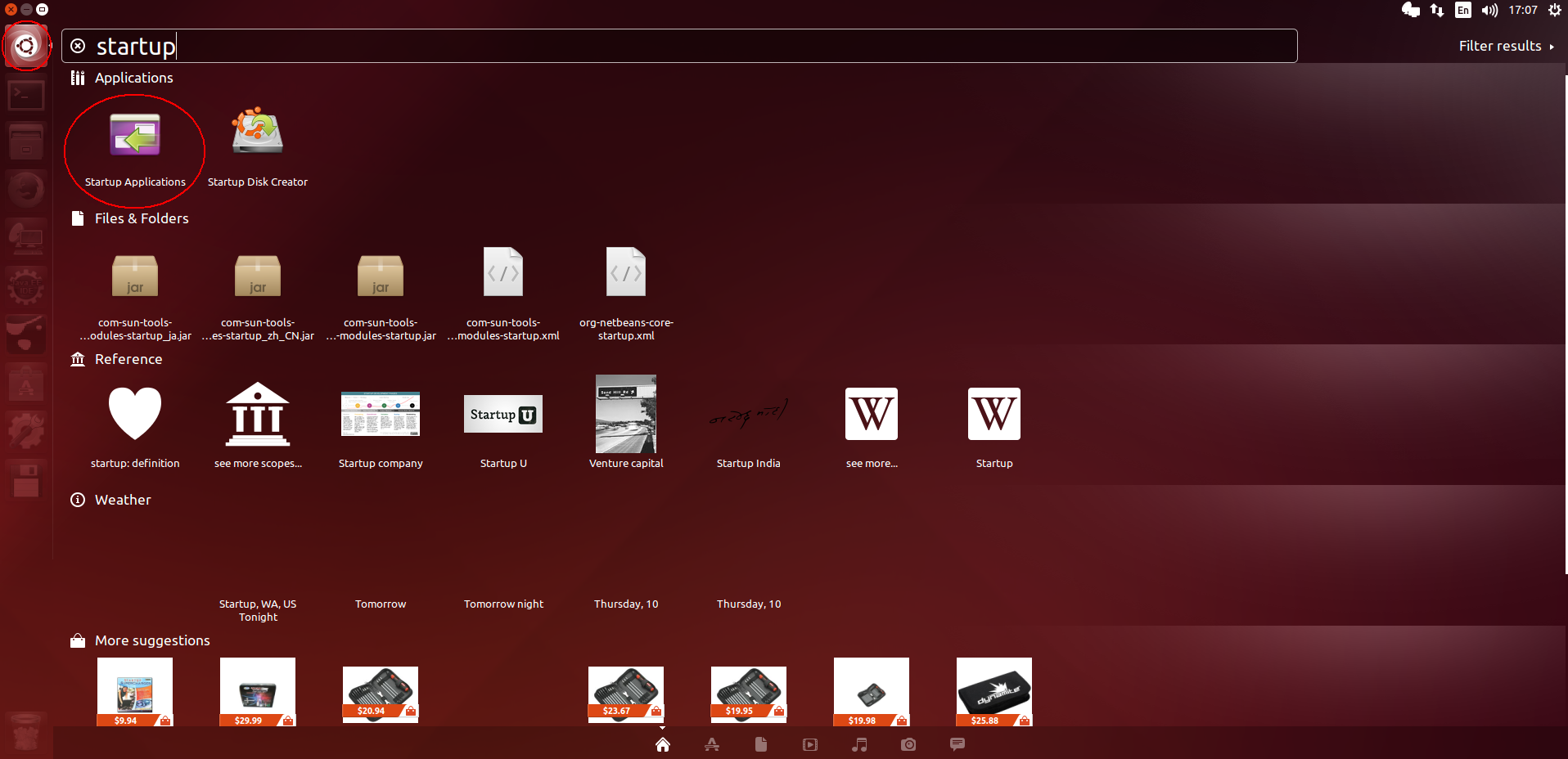
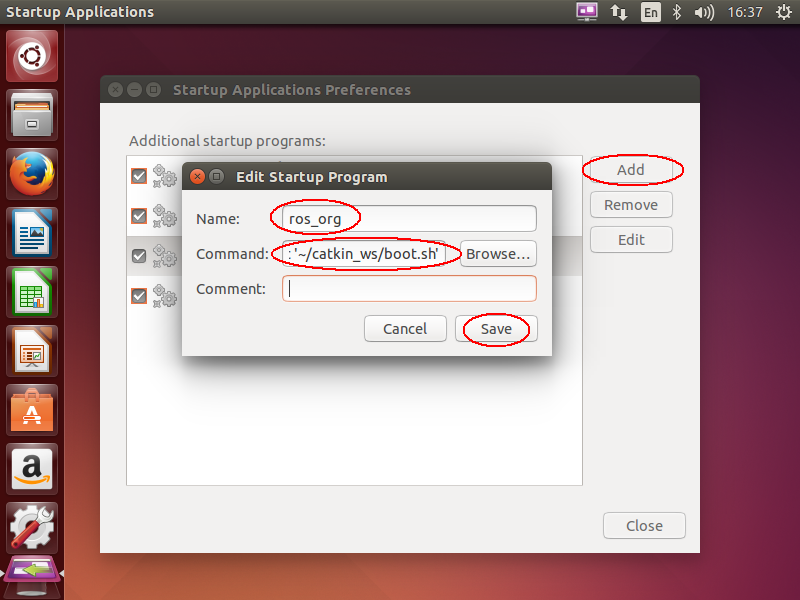
edit the startup program command as follow if running ros file before calling .bashrc
> gnome-terminal -x bash -c '~/catkin_ws/boot.sh'
***
# upgrade linux kernel
download [intel nuc wifi](https://www.intel.com/content/www/us/en/support/articles/000005511/network-and-i-o/wireless-networking.html)
select [linux kernel version](http://kernel.ubuntu.com/~kernel-ppa/mainline/)
download headers, headers-generic, and image deb
>$ uname -sr
>$ sudo dpkg -i *.deb
>$ sudo reboot
>$ uname -sr
>$ sudo cp -i iwlwifi-*.ucode /lib/firmware
>$ sudo update-grub
>$ sudo reboot
***
# change hostname
>$ sudo vi /etc/hostname
[hostname]
>$ sudo vi /etc/hosts
127.0.0.1 localhost
127.0.1.1 [hostname]
***
# systemback iso
>$ sudo add-apt-repository ppa:nemh/systemback
>$ sudo apt-get update && sudo apt-get install systemback unionfs-fuse
revise grub file in order to alter display resolution if necessary
>$ sudo sed -i -e '/GRUB_CMDLINE_LINUX_DEFAULT="quiet splash"/ c GRUB_CMDLINE_LINUX_DEFAULT="quiet splash i915.alpha_support=1"' /etc/default/grub
>$ sudo update-grub
***
# remastersys backup (obselete)
download [remastersys_3.0.3-1_all.deb](https://raw.githubusercontent.com/ouiyeah/ubuntu/master/pkg/remastersys_3.0.3-1_all.deb)
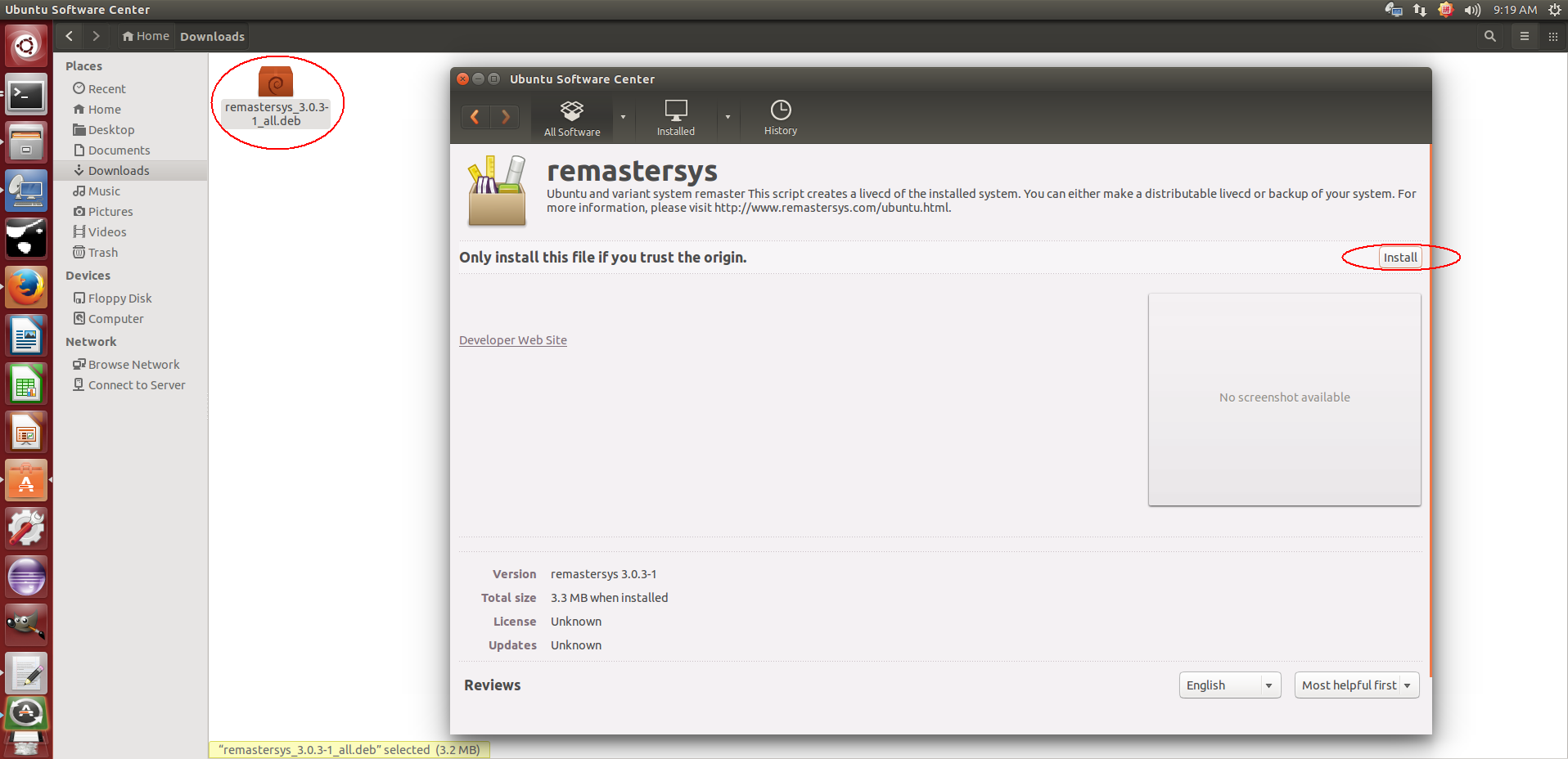
note that remastersys should be re-installed if it is already a remastersys backup system
change "WORKDIR" to custom directory if necessary (e.g. /home/remastersys)
>$ sudo nano /etc/remastersys.conf
do the remastersys backup
>$ sudo remastersys backup
wait for a while and get the generated file at /home/remastersys/
note that teminate the backup ctrl+c and do the following if the basename warning happened
>$ sudo apt-get remove popularity-contest
>$ sudo apt-get remove ubiquity*
>$ sudo apt-get remove remastersys
>$ sudo apt-get update
>$ sudo apt-get -f install
use other software (e.g. ultraiso) to make boot disk if necessary