# ElevenClock
**Repository Path**: sky2dzy/ElevenClock
## Basic Information
- **Project Name**: ElevenClock
- **Description**: No description available
- **Primary Language**: Unknown
- **License**: Apache-2.0
- **Default Branch**: main
- **Homepage**: None
- **GVP Project**: No
## Statistics
- **Stars**: 0
- **Forks**: 0
- **Created**: 2021-11-19
- **Last Updated**: 2021-11-19
## Categories & Tags
**Categories**: Uncategorized
**Tags**: None
## README
# ElevenClock
### For the next weekend we aren't going to have an update but i'll work on a new wiki and on the media pictures, which are outdated. Also, i'm working on publishing ElevenClock to the MS Store










A customizable taskbar clock for secondary taskbars on Windows 11. When microsoft's engineers were creating Windows 11, they forgot to add a clock on the secondary screen taskbar. So I did that. ElevenClock is a simple app which provides the same functionality as in windows 10 secondary taskbar clock.
For more info, make sure to check out this article published on MS Answers forum and written by [@Sumitdhiman](https://github.com/Sumitdhiman): [https://answers.microsoft.com/en-us/windows/...](https://answers.microsoft.com/en-us/windows/forum/all/add-clock-to-the-second-display-in-windows-11/14ed24f5-b203-4bd7-a4e7-c4eb3539b042)
## Support the dev:
[](https://ko-fi.com/martinet101)
## Table of contents
- [ElevenClock](#elevenclock)
- [Table of contents](#table-of-contents)
- [Translating ElevenClock](#translating-elevenclock-to-other-languages)
- [Features](#features)
- [Planned Features](#planned-features)
- [Installation](#installation)
- [Download from](#download-from)
- [Known Issues](#known-issues)
- [Frequently Asked Questions](#frequently-asked-questions)
- [Screenshots](#screenshots)
## Translating ElevenClock to other languages
See [TRANSLATION.md](https://github.com/martinet101/ElevenClock/blob/main/TRANSLATION.md)
## Easy installation:
Press Win+R type `cmd` and press Enter. Then, copy and paste `winget install ElevenClock`. Finally press Enter. ElevenClock will be installed automatically.
## Features
- It supports all system locales and time formats (they are pulled from the OS)*
- It shows in all displays except in the primary one (Because you have the default system clock)
- It supports dark and light theme
- It hides automatically when using a full-screen app (this function can be disabled)
- It imitates Windows 11's taskbar clock animation on hover
- It supports taskbars on the top of the screen
- It supports moving the clock to the left of the screen (And showing in also on the main monitor):

- It supports different system integrations, like hiding when RDP is active
- It is compatible with small taskbars
- It supports taskbar customizations like Start11
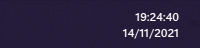
- It supports seconds (Windows 11's default clock can't do that):
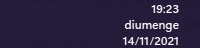
- It supports also showing the week day:
- ElevenClock downloads and installs updates automatically, so you don't have to
- Clicking the clock shows/hides the notifications and calendar panel
- Correct alignment and size on HiDPi displays (100%, 200%, 300%) AND on fractional HiDPI displays(125%, 150%, 175%, 250%, etc.)*
- Correct alignment and size on Different-scaled monitors (Display1: 100%, Display2: 150%, Display3: 225%, etc.)*
- The clock updates the time each second, so you won't see different times across all your taskbars
- The clock also adjusts itself automatically when (dis)connecting monitors
- Automatically starts at login
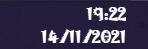
- It supports font and size customization (color and background will come soon):
## Supported languages
- Catalan
- English
- French
- German
- Spanish
- Polish
- Russian
- Turkish
- Italian
- Dutch
- Norwegian
- Korean
- Vietnamese
- Greek
- Traditional Chinese (Taiwan)
- Portuguese
- Japanese
- Simplified Chinese (China)
- Finnish
- Indonesian
- Serbian
- Lithuanian
### Languages coming in the next version:
## Planned features
- [ ] You say!
## Installation
1. Download the latest version from [SomePythonThings](https://www.somepythonthings.tk/programs/elevenclock/#downloadSection) or from [Github Releases](https://github.com/martinet101/ElevenClock/releases)
2. Open the installer and bypass Windows Defender SmartScreen: Click on more info and then on run:
2.1. Click on "More info":

2.2. Click on "Run anyway":

3. Install the program as normal:

4. The clock should start automatically when the installation is finished.
**TIP: Clicking four times on the clock will show this webpage*
## Download from
MajorGeeks: [https://m.majorgeeks.com/files/details/elevenclock.html](https://m.majorgeeks.com/files/details/elevenclock.html)
OlderGeeks: [https://www.oldergeeks.com/downloads/file.php?id=3802](https://www.oldergeeks.com/downloads/file.php?id=3802)
SoftPedia: [https://www.softpedia.com/get/Desktop-Enhancements/Clocks-Time-Management/ElevenClock.shtml](https://www.softpedia.com/get/Desktop-Enhancements/Clocks-Time-Management/ElevenClock.shtml)
Github Releases: [https://github.com/martinet101/ElevenClock/releases/latest](https://github.com/martinet101/ElevenClock/releases/latest)
SomePythonThings: [https://www.somepythonthings.tk/programs/elevenclock/](https://www.somepythonthings.tk/programs/elevenclock/)
## Known Issues
- ElevenClock might be reposted as a potential virus or it might be quarantined (Most of the users used Mcafee)
## Frequently asked questions
**Q: The clock shows over fullscreen**
A: Enable fullscreen hiding in settings
**Q: The clock shows over RDP sessions**
A: Enable RDP hiding in settings (it may consume more CPU)
**Q: Can ElevenClock be in my language?**
A: Yes, just take a look to [TRANSLATION.md](https://github.com/martinet101/ElevenClock/blob/main/TRANSLATION.md)
**Q: My antivirus is telling me that ElevenClock is a virus/My antivirus is uninstalling ElevenClock/My browser is blocking ElevenClock download**
A: Just whitelist ElevenClock on the antivirus quarantine box/antivirus settings
**Q: The clock shows seconds when the "Show Seconds" settings is disabled**
A: Check that yiu don't have seconds set in your regional settings and disable seconds following this [article's instructions](https://www.howtogeek.com/325096/how-to-make-windows-10s-taskbar-clock-display-seconds/) (Other guides might not work)
**Q: ElevenClock does not show the correct time zone when time zone is changed**
A: Just restart ElevenClock (Right-click clock -> Restart ElevenClock)
**Q: The main clock does not get modified when enabling seconds, etc.**
A: ElevenClock can't modify or update the main clock due to Windows 11's restrictions.
## Screenshots
Elevenclock on 100% DPI: 
Elevenclock on 125% DPI: 
Elevenclock on 150% DPI: 
Elevenclock on 175% DPI: 
ElevenClock settings:


