# glazewm
**Repository Path**: wedojava/glazewm
## Basic Information
- **Project Name**: glazewm
- **Description**: https://github.com/glzr-io/glazewm
GlazeWM is a tiling window manager for Windows inspired by i3 and Polybar.
- **Primary Language**: Unknown
- **License**: GPL-3.0
- **Default Branch**: main
- **Homepage**: None
- **GVP Project**: No
## Statistics
- **Stars**: 0
- **Forks**: 0
- **Created**: 2024-03-26
- **Last Updated**: 2024-03-26
## Categories & Tags
**Categories**: Uncategorized
**Tags**: Windows
## README
# GlazeWM · [](https://github.com/glzr-io/glazewm/pulls) [](https://github.com/glzr-io/GlazeWM/blob/master/LICENSE.md) [](https://discord.gg/ud6z3qjRvM)
GlazeWM is a tiling window manager for Windows inspired by i3 and Polybar.
Why use a tiling window manager? A tiling WM lets you easily organize windows and adjust their layout on the fly by using keyboard-driven commands.
- Simple YAML configuration
- Multi-monitor support
- Customizable bar window
- Customizable rules for specific windows
- Easy one-click installation
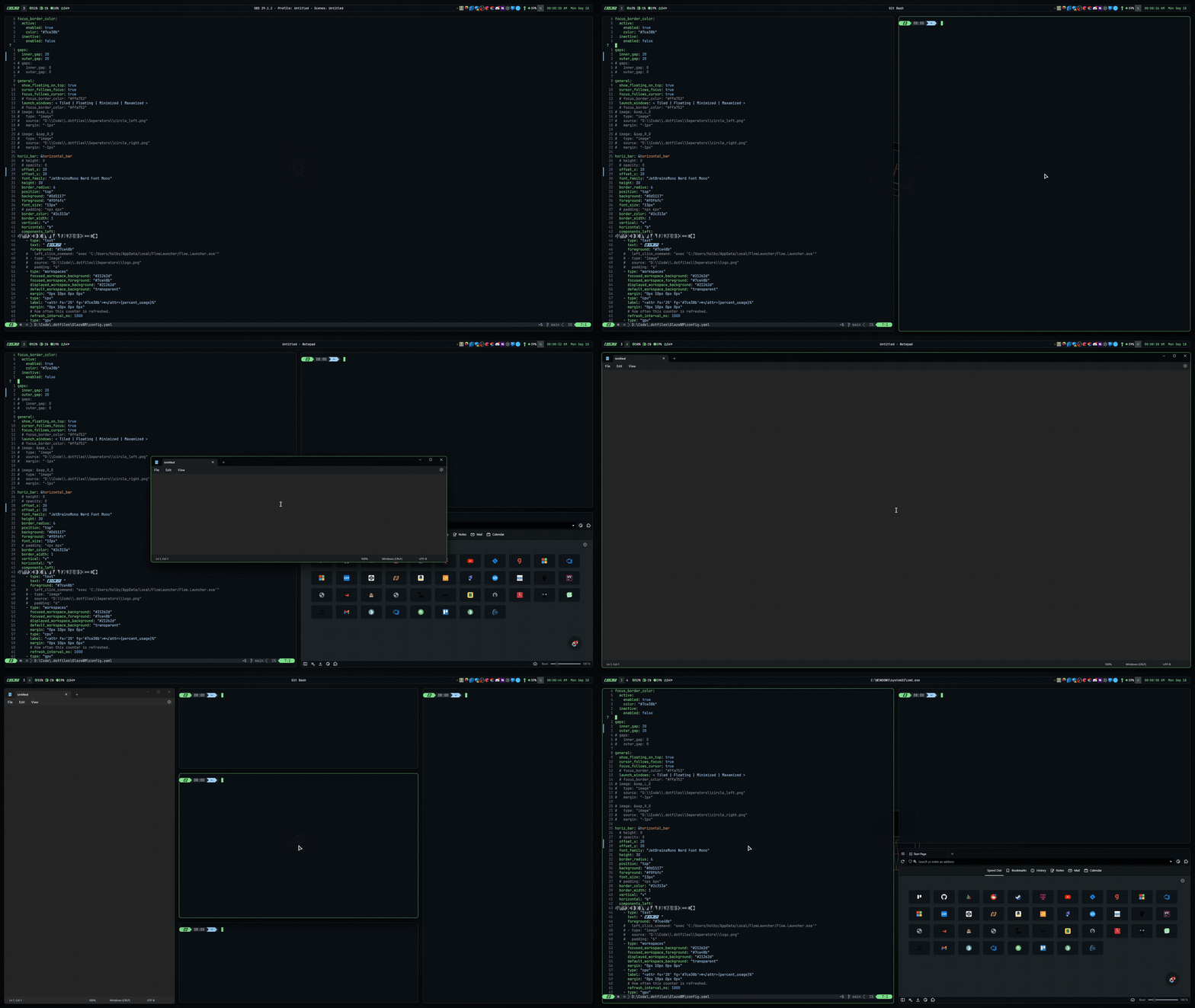
Showcase GIF by @HolbyFPV
Under the hood, GlazeWM adds functionality to the built-in window manager and uses the Windows API via P/Invoke to position windows.
# Table of Contents
- [Download](#download)
- [Roadmap](#roadmap)
- [Configuration](#configuration)
- [Available Commands](#available-commands)
- [Known Issues](#known-issues)
- [Contributing](#contributing)
# Download
- [Direct download](#direct-download)
- [Winget](#winget)
- [Scoop](#scoop)
- [Build from source](#build-from-source)
## Direct download
The latest runnable executable can be downloaded via [releases](https://github.com/glzr-io/GlazeWM/releases). No installation necessary, simply run the `.exe` file.
## Winget
GlazeWM can be downloaded via Winget package manager:
```sh
winget install GlazeWM
```
Winget installs portable packages in `%LOCALAPPDATA%\Microsoft\Winget\Packages\` by default. This can be overrided with the flag `--location \path\to\folder`.
## Scoop
GlazeWM can be download via Scoop in the [Extras](https://github.com/ScoopInstaller/Extras) bucket:
```powershell
scoop bucket add extras # Ensure bucket is added first
scoop install glazewm
```
## Build from source
Alternatively, to build from source, use the following .NET CLI command:
```sh
dotnet publish ./GlazeWM.App/GlazeWM.App.csproj --configuration=Release --runtime=win-x64 --output=. --self-contained -p:PublishSingleFile=true -p:IncludeAllContentForSelfExtract=true
```
To build for other runtimes than Windows x64, see [here](https://docs.microsoft.com/en-us/dotnet/core/rid-catalog#windows-rids).
# Roadmap
- Improve handling of fullscreen and maximized windows.
- More bar components.
[📋 Full roadmap](https://github.com/users/lars-berger/projects/2/views/1)
# Configuration
- [General](#general)
- [Keybindings](#keybindings)
- [Focus Window Border](#focus-window-border)
- [Gap Configuration](#gap-configuration)
- [Workspaces](#workspaces)
- [Bar Configuration](#bar-configuration)
The configuration file for GlazeWM can be found at `C:\Users\\.glaze-wm\config.yaml`. If this file doesn't exist, the [default config](https://github.com/glzr-io/GlazeWM/blob/master/GlazeWM.App/Resources/sample-config.yaml) can optionally be generated on launch.
To use a different config file location, you can launch the GlazeWM executable with the CLI argument `--config="..."`, like so:
```sh
./GlazeWM.exe --config="C:\\config.yaml"
```
## General
```yaml
general:
# Whether to automatically focus windows underneath the cursor.
focus_follows_cursor: false
# Whether to jump the cursor between windows focused by the WM.
cursor_follows_focus: false
# Whether to switch back and forth between the previously focused workspace
# when focusing the current workspace.
toggle_workspace_on_refocus: true
# Whether to show floating windows as always on top.
show_floating_on_top: false
# Amount to move floating windows by (eg. when using `alt+` on a floating window)
floating_window_move_amount: "5%"
# Whether to globally enable/disable window transition animations (on minimize, close,
# etc). Set to 'unchanged' to make no setting changes.
window_animations: "unchanged"
# Whether to center new floating windows (default is true)
center_new_floating_windows: true
```
## Keybindings
The available keybindings can be customized via the `keybindings` property in the config file. A keybinding consists of one or more key combinations and one or more commands to run when pressed.
A full list of keys that can be used for keybindings can be found [here](https://docs.microsoft.com/en-us/dotnet/api/system.windows.forms.keys?view=windowsdesktop-5.0#fields). Numbers can be used in keybindings with and without a `D` prefix (eg. either `D1` or `1` works).
It's recommended to use the alt key for keybindings. The windows key is unfortunately a pain to remap, since certain keybindings (eg. `LWin+L`) are reserved by the OS.
```yaml
keybindings:
# Command to run.
- command: "focus workspace 1"
# Key combination to trigger the keybinding.
binding: "Alt+1"
# To run multiple commands in a sequence, use the `commands` property (eg. to move a window to a
# workspace + focus workspace).
- commands: ["move to workspace 1", "focus workspace 1"]
binding: "Alt+Shift+1"
- command: "focus left"
# To have multiple key combinations that can trigger a command, use the `bindings` property.
bindings: ["Alt+H", "Alt+Left"]
```
### Default keybindings
Keybindings with Alt pressed:

Keybindings with Alt+Shift pressed:

Apart from the `Alt+Shift+E` binding for exiting GlazeWM, it's also possibly to safely exit via the system tray icon.
## Focus Window Border configuration
The focused and unfocused window border color can be configured via the `focus_borders` property.
_Requires minimum of Windows 11 Build 22000.51._
```yaml
focus_borders:
active:
enabled: true
color: "#ff0000"
inactive:
enabled: false
color: "#0000ff"
```
## Gap configuration
The gaps between windows can be changed via the `gaps` property in the config file. Inner and outer gaps are set separately.
```yaml
gaps:
# Gap between adjacent windows.
inner_gap: "20px"
# Gap between windows and the screen edge. See "Shorthand properties" for more info.
outer_gap: "20px 0 20px 0"
```
## Workspaces configuration
Workspaces need to be predefined via the `workspaces` property in the config file. A workspace is automatically assigned to each monitor on startup.
```yaml
workspaces:
# Uniquely identifies the workspace and is used as the label for the workspace in the bar if
# `display_name` is not provided.
- name: "1"
# Optional override for the workspace label in the bar. Does not need to be unique.
display_name: "Work"
# Optionally force the workspace on a specific monitor if it exists. Use the monitor's number
# as shown in the Windows display settings (eg. 1, 2, 3...).
bind_to_monitor: 1
# Optionally prevent workspace from being deactivated when empty.
keep_alive: false
```
## Bar configuration
- [Bar Component configuration](#bar-component-configuration)
- [Bar Components](#bar-components)
The appearance of the bar can be changed via the `bar` property in the config file.
```yaml
bar:
# The option to enable/disable the bar.
enabled: true
# Height of the bar in pixels.
height: "30px"
# The position of the bar on the screen. Can be either "top" or "bottom".
position: "top"
# Whether to show the bar above other windows
always_on_top: false
# Opacity value between 0.0 and 1.0.
opacity: 1.0
# Background color of the bar.
background: "#101010"
# Default font color. Can be overriden by setting `foreground` in a component's config.
foreground: "white"
# Default font family. Can be overriden by setting `font_family` in a component's config.
font_family: "Segoe UI"
# Default font size. Can be overriden by setting `font_size` in a component's config.
font_size: "13px"
# Default font weight. Typically ranges from 100 to 950, where a higher value is thicker. Can
# be overriden by setting `font_weight` in a component's config.
font_weight: "400"
# Horizontal and vertical borders in pixels. Borders are inside the dimensions of the bar and do
# not affect bar height. See "Shorthand properties" for more info.
border_width: "0"
# Color of the border.
border_color: "blue"
# Horizontal and vertical spacing between components within the bar and the edges of the bar. See
# "Shorthand properties" for more info.
padding: "4px 6px 4px 6px"
# Separator between components within the bar. `label` is used for each section
# of the bar unless `label_{left,center,right}` is explictly set, in which case
# they are preferred over default.
component_separator:
label: " | "
# Components to display on the left side of the bar.
components_left:
- type: "workspaces"
# Components to display on the right side of the bar.
components_right:
- type: "clock"
```
### Bar Component configuration
The appearance of bar components can also be customized. The following properties can change the styling of a component, regardless of the component type.
```yaml
# Type of component to display. See "Bar Components" for all available components.
type:
# Horizontal and vertical margins. See "Shorthand properties" for more info.
margin: "0 10px 0 0"
# Horizontal and vertical padding. See "Shorthand properties" for more info.
padding: "0"
# Opacity value between 0.0 and 1.0.
opacity: 1.0
# Background color of the component.
background: "#101010"
# Font color used within the component.
foreground: "white"
# Font family used within the component.
font_family: "Segoe UI"
# Font size used within the component.
font_size: "13px"
# Font weight used within the component. Typically ranges from 100 to 950, where a higher value is
# thicker.
font_weight: "400"
# Horizontal and vertical borders in pixels. Borders are inside the dimensions of the component.
# See "Shorthand properties" for more info.
border_width: "0"
# Color of the border.
border_color: "blue"
```
### Shorthand properties
Properties related to the edges of the bar or a component, like `padding`, `margin`, and `border_width`, use a 1-to-4 value syntax. This is the same convention that's common in CSS.
Using the example of padding:
- When one value is specified, it applies the same padding to all four sides.
- When two values are specified, the first padding applies to the top and bottom, the second to the left and right.
- When three values are specified, the first padding applies to the top, the second to the right and left, the third to the bottom.
- When four values are specified, the paddings apply to the top, right, bottom, and left in that order (clockwise).
### Bar components
- [Clock](#bar-component-clock)
- [Battery](#bar-component-battery)
- [CPU Usage](#bar-component-cpu-usage)
- [GPU Usage](#bar-component-gpu-usage)
- [Memory Usage](#bar-component-memory-usage)
- [Network](#bar-component-network)
- [Volume](#bar-component-volume)
- [Text File](#bar-component-text-file)
- [Weather](#bar-component-weather)
- [Image](#bar-component-image)
- [System Tray](#bar-component-system-tray)
- [Music](#bar-component-music)
#### Bar component: Clock
The text shown in the clock component is specified via `time_formatting`. The supported time format specifiers are defined by [.NET's time/date string formatting](https://learn.microsoft.com/en-us/dotnet/standard/base-types/custom-date-and-time-format-strings).
Additionally supported format specifiers:
| Specifier | Description | Example |
| --------- | ------------------- | ------------------------------------------------ |
| "w" | Week of year: 1..53 | 'HH:mm dd.MM.yyyy (ww)' => 13:05 21.12.2022 (51) |
| "ww" | Week of year 01..53 | 'HH:mm dd.MM.yyyy (ww)' => 13:05 02.01.2022 (02) |
**Example usage:**
```yaml
- type: "clock"
time_formatting: "hh:mm tt ddd MMM d"
```
#### Bar component: Battery
The battery component displays the system's battery level in percent.
There are three labels available that can be customized:
- `label_draining`: used when the system is draining battery power(i.e. not charging).
- `label_power_saver`: used when the system is on power saving mode.
- `label_charging`: used when the system is connected to power.
`{battery_level}` is a variable which is replaced by the actual battery level when the label is displayed.
**Example usage:**
```yaml
- type: "battery"
label_draining: "{battery_level}% remaining"
label_power_saver: "{battery_level}% (power saver)"
label_charging: "{battery_level}% (charging)"
```
#### Bar component: CPU Usage
Displays the current CPU usage.
```yaml
- type: "cpu"
label: "CPU: {percent_usage}%"
# How often this counter is refreshed.
refresh_interval_ms: 1000
```
#### Bar component: GPU Usage
This component has high CPU requirement (compared to others); due to no efficient way to pull data from Windows API. Avoid using low refresh intervals.
```yaml
- type: "gpu"
label: "GPU: {percent_usage}%"
# How often this counter is refreshed.
refresh_interval_ms: 1000
```
#### Bar component: Memory Usage
Displays the current Memory usage.
```yaml
- type: "memory"
label: "RAM: {percent_usage}%"
# How often this counter is refreshed.
refresh_interval_ms: 1000
```
#### Bar component: Network
Displays the type and signal strength of the active network connection.
```yaml
- type: "network"
label_no_internet: "NC"
label_ethernet: "Eth"
label_wifi_strength_0: "WiFi: 0%"
label_wifi_strength_25: "WiFi: 25%"
label_wifi_strength_50: "WiFi: 50%"
label_wifi_strength_75: "WiFi: 75%"
label_wifi_strength_100: "WiFi: 100%"
```
#### Bar component: Volume
Displays volume level.
```yaml
- type: "volume"
label_low: "🔊{volume_level}%"
label_medium: "🔊{volume_level}%"
label_high: "🔊{volume_level}%"
label_mute: "🔊{volume_level}%"
```
#### Bar component: Text File
For displaying any content without a native integrated widget; updates in real time.
```yaml
- type: "text file"
# Path to file.
file_path: "PATH_HERE"
```
#### Bar component: Weather
Uses Open-Meteo API, refreshes every hour.
```yaml
- type: "weather"
latitude: 40.6892
longitude: 74.0445
label: "{temperature_celsius}°C"
label_sun: "☀️ {temperature_celsius}°C"
label_moon: "🌙 {temperature_celsius}°C"
label_cloud_moon: "🌙☁️ {temperature_celsius}°C"
label_cloud_sun: "⛅ {temperature_celsius}°C"
label_cloud_moon_rain: "🌙🌧️ {temperature_celsius}°C"
label_cloud_sun_rain: "🌦️ {temperature_celsius}°C"
label_cloud_rain: "🌧️ {temperature_celsius}°C"
label_snow_flake: "❄️ {temperature_celsius}°C"
label_thunderstorm: "⚡ {temperature_celsius}°C"
label_cloud: "☁️ {temperature_celsius}°C"
```
#### Bar component: Image
Supports `.png` and `.jpg` formats.
```yaml
- type: "image"
source: "C:\\Folder\\AnotherFolder\\image.png"
```
#### Bar component: System Tray
Use `Alt+Click` to pin and un-pin an icon.
```yaml
- type: "system tray"
label_expand_text: "<"
label_collapse_text: ">"
```
#### Bar component: Music
Displays currently playing music.
```yaml
- type: "music"
label_not_playing: ""
label_paused: "{song_title} - {artist_name}"
label_playing: "{song_title} - {artist_name} ▶"
max_title_length: 20
max_artist_length: 20
```
## Mixing font properties within a label
Font family, font weight, font size, and foreground color can be changed within parts of a label. This means that icons and text fonts can be used together in a label. To customize a part of the label, wrap it in an tag:
```yaml
bar:
components_left:
- type: "cpu"
# Change font family (ie. ff) to Comic Sans for part of the label:
label: "CPU: {percent_usage}%"
- type: "battery"
# Show an icon by using an icon font:
label_draining: " {battery_level}%"
# Multiple attributes can be changed at once:
label_charging: "{battery_level}% (charging)"
```
## Icons in Bar Components
It's common to use icons as the `label` in bar components by assigning a font family that contains glyphs. A popular option is [Nerd Font](https://www.nerdfonts.com/font-downloads) which comes with a [cheat sheet](https://www.nerdfonts.com/cheat-sheet) for easily finding a desired glyph.
### Contributing New Bar Components
[Guide Available Here](./docs/contributing-new-components.md)
## Window rules
Commands can be run when a window is initially launched. This can be used to assign an app to a specific workspace or to always start an app in floating mode.
Multiple matching criteria can be used together to target a window more precisely. Regex syntax can also be used by wrapping the pattern with `/` (eg. `/notepad|chrome/`)
```yaml
window_rules:
# Command to run. Use `commands` to specify an array of commands to run in sequence.
- command: "move to workspace 2"
# Process name to match exactly.
match_process_name: "chrome"
# Window title to match exactly.
match_title: "/.*/"
# Class name to match exactly.
match_class_name: "Chrome_WidgetWin_1"
# To prevent the WM from managing an app, use the "ignore" command.
- command: "ignore"
match_process_name: "notepad"
```
# Available commands
- focus \
- focus workspace \
- focus workspace \
- move \
- move to workspace \
- resize \ \ (eg. `resize height 3%` or `resize width 20px`)
- resize borders [\](#shorthand-properties) (eg. `resize borders 0px -7px -7px -7px`)
- set \
- set \ \ (eg. `set height 30%` or `set width 200px`)
- toggle \
- focus mode toggle
- tiling direction
- exit wm
- reload config
- close
- exec \ (eg. `exec chrome` or `exec 'C:/Program Files/Google/Chrome/Application/chrome'`)
- ignore
# Known issues
- [Blurry buttons in bar window](#blurry-buttons-in-bar-window)
- [Binding the right-side Alt key `RMenu` on certain keyboard layouts](#binding-the-right-side-alt-key-rmenu-on-certain-keyboard-layouts)
- [How to remap `LWin`](#how-to-remap-lwin)
## Blurry buttons in bar window
An app called "Sonic Studio", which is installed by default on ASUS ROG machines can cause rendering issues with WPF apps. This can be resolved by disabling `NahimicService` in Windows Services Manager.
## Binding the right-side Alt key `RMenu` on certain keyboard layouts
Most keyboard layouts treat the right-side Alt key the same as the left, while others (eg. US International and German) treat it as AltGr and generate both Ctrl and Alt when it is pressed. For these keyboard layouts, keybindings with the AltGr key need to specify both `RMenu` and `Control` (eg. `RMenu+Control+A`).
## How to remap `LWin`
Example:
Run the following autohotkey v1 script as administrator
```
; https://superuser.com/a/1819950/881662
#InstallKeybdHook
; Disable win + l key locking (This line must come before any hotkey assignments in the .ahk file)
RegWrite, REG_DWORD, HKEY_CURRENT_USER, Software\Microsoft\Windows\CurrentVersion\Policies\System, DisableLockWorkstation, 1
; Optional: Remap winKey + here:
#space::return
#s::return
#h::
Send, ^{F9} ; It's important to chose some random intermediary hotkey, I choose ctrl + F9
return
#j::
Send, ^{F10}
return
#k::
Send, ^{F11}
return
#l::
Send, ^{F12}
return
;CTRL+WIN+L
^F12::
RegWrite, REG_DWORD, HKEY_CURRENT_USER, Software\Microsoft\Windows\CurrentVersion\Policies\System, DisableLockWorkstation, 0
DllCall("LockWorkStation")
;after locking workstation force a reload of this script which effectively disables Win + L locking the computer again
Reload
```
Next, amend the keybindings section in config.yaml:
```
keybindings:
# Shift focus in a given direction.
- command: "focus left"
bindings: ["Ctrl+F9"] ; Notice I am using the intermediary hotkeys here
- command: "focus right"
bindings: ["Ctrl+F12"]
- command: "focus up"
bindings: ["Ctrl+F11"]
- command: "focus down"
bindings: ["Ctrl+F10"]
```
That's it, now you can use `LWin + l` to focus right and `LWin + h` to focus left, etc.